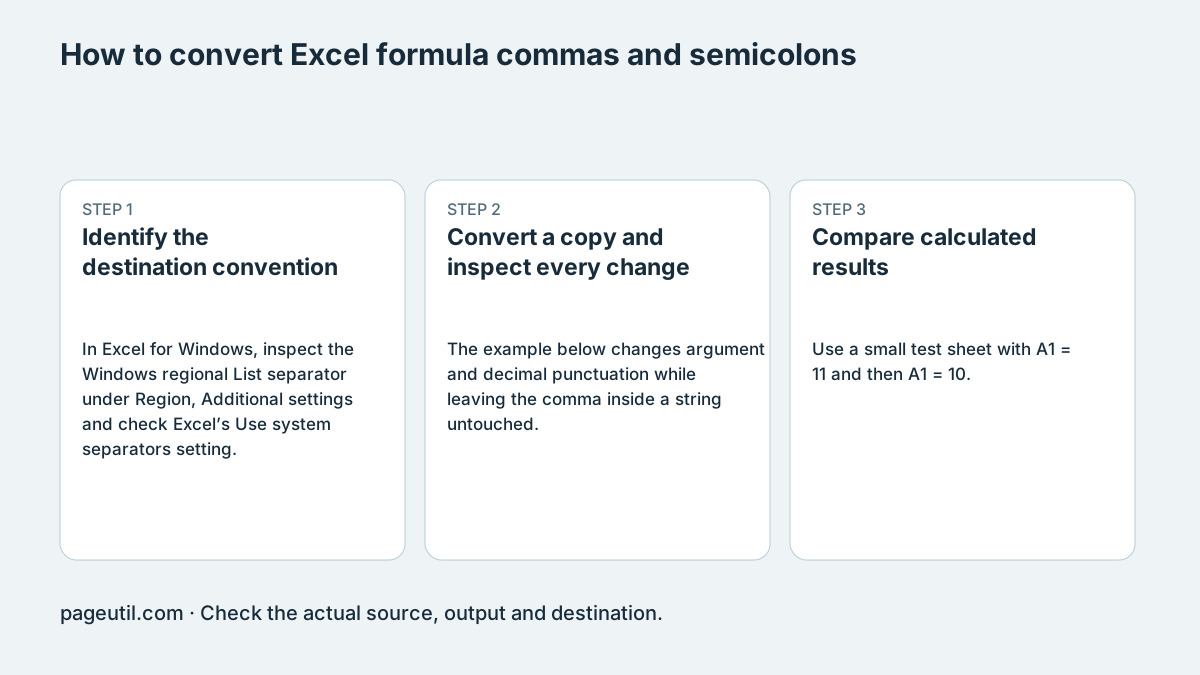
Identify the destination convention
In Excel for Windows, inspect the Windows regional List separator under Region, Additional settings and check Excel’s Use system separators setting. The decimal and thousands fields in Excel are not a dedicated formula-list-separator control. Avoid changing system-wide settings merely to paste one formula.
In Google Sheets, inspect the spreadsheet’s locale in File, Settings. Formula language is a separate consideration: verify a simple formula in the receiving app instead of assuming all web or mobile editions always use English function names.
Convert a copy and inspect every change
The example below changes argument and decimal punctuation while leaving the comma inside a string untouched. It assumes a destination using semicolons for arguments, decimal commas and English IF; adapt the function language separately if required.
Array constants and structured references have their own delimiter rules. Use the converter’s preview and keep a source copy. Do not perform an unrestricted comma-to-semicolon replacement across numbers, quoted strings and every nested syntax context.
Source convention:
=IF(A1>10.5, "Verified, OK", "Review")

Destination convention described above:
=IF(A1>10,5; "Verified, OK"; "Review")
Compare calculated results
Use a small test sheet with A1 = 11 and then A1 = 10. Both formula versions should return the same respective strings in their intended conventions. Test empty/error cells and representative arrays or table references if those occur in the real formula.
A syntax pass is not a calculation-equivalence test. A #NAME? result may involve an unknown function or named range, not just punctuation. Keep original formulas until the actual workbook calculates correctly, and review any global locale change for effects on CSV imports and other applications.
References
Use the linked specifications and product documentation to check behavior in your own environment.
Continue troubleshooting
- How to find and replace in pasted text
- How to compare two texts line by line
- How to Fix GA4 Cost Data CSV Import and UTM Matching Errors
- How to Fix Google Workspace Bulk User CSV Upload Errors
- How to Avoid Accidental Grade Overwrites in Moodle Gradebook CSV Imports
- How to Merge Recurring Microsoft Teams Attendance Reports
- How to Fix Azure DevOps Test Case CSV and Test Step Import Errors
- How to Check and Combine Windows Autopilot CSV Exports
- How to Preview Cloudflare Pages Header Rules Before Deployment
- How to Review Pinterest Bulk Pin Boards and Publishing Schedules
- How to Check Jira CSV Parent References and Hierarchy
- How to Check ShipStation Product CSV Updates Before Import
- How to Understand eBay Bulk Upload Results and Retry Failed Records
- How to Fix Google My Maps CSV Import and Coordinate Errors
- How to Fix Microsoft Teams Shifts Excel Import Errors
- How to Fix Webflow CMS CSV Import Reference and Slug Errors
- How to Fix Canva Bulk Create CSV and Spreadsheet Errors
- How to Clean and Split Email CSV for Klaviyo and Mailchimp
- How to Format and Map a Google Contacts CSV Import
- How to Fix Cloudflare Bulk Redirect CSV Errors
- How to Check a Google Business Profile Bulk Update CSV
- How to Fix Google Ads Editor CSV Import Errors
- How to Explain a Stripe Payout That Does Not Match the Bank
- How to Fix a QuickBooks Bank CSV Import
- How to Fix CSV Encoding, Columns and Leading Zeros in Excel
- How to extract Word tables to Excel
Related tools
Frequently asked questions
Does separator conversion translate function names?
No. Check function language separately in the receiving application.
Should I replace every comma in a formula?
No. Quoted strings, decimals, arrays and structured references need context-aware handling.
Does successful parsing prove equivalent results?
No. Test representative cell values and compare actual workbook calculations.