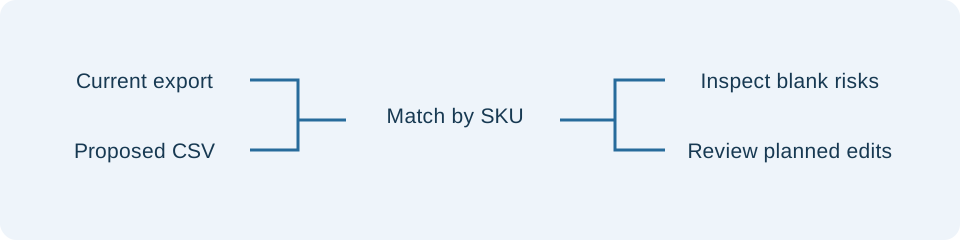
Start with a fresh baseline
Download a current catalog immediately before preparing your update. Keep the original export intact and create a working copy. A snapshot cannot show account changes made after it was downloaded, so coordinate with anyone else editing the catalog.
Select both files in the checker. Preserve SKU text when opening files in a spreadsheet: a removed leading zero cannot be reconstructed by the comparison. Review duplicate identifiers and case-only differences rather than assuming they refer to the same product. If your catalog exceeds the tool limits, split both files into matching SKU batches.
Review changes against your intention
Mark the fields you intended to edit. Start with the blank-risk filter, then inspect all other findings. A field marked intentional can still contain an accidental blank or a bad value; intention does not approve the contents.
Use the before and proposed columns to check values, identifiers and row references. Measurement and customs differences deserve operational review even when they are expected. Confirm units at the import mapping step, especially when the source file came from another platform. The checker performs no conversion between grams, ounces or dimension units.
A field missing from the baseline cannot be compared reliably. Refresh the export or inspect it in ShipStation. A missing column in the proposed file is listed separately from an explicit empty cell. Unknown headings require mapping; renaming a column should reflect its actual meaning, not simply make a warning disappear.
Keep a review record
Download the full change report and share it through your normal internal review process. The report contains product data, so store it with the same care as the catalog. Spreadsheet formula starters are escaped in diagnostic exports; the report is not designed for reimport.
Before applying a reviewed update, check the current account, importer mapping and overwrite setting. Keep a backup export and inspect the resulting products after import. If your baseline has become stale during review, compare again. The preview is evidence for your decision, not a guarantee that an import will succeed.
References
Use the linked specifications and product documentation to check behavior in your own environment.
Continue troubleshooting
- How to Understand eBay Bulk Upload Results and Retry Failed Records
- How to Fix GA4 Cost Data CSV Import and UTM Matching Errors
- How to Fix Google Workspace Bulk User CSV Upload Errors
- How to Avoid Accidental Grade Overwrites in Moodle Gradebook CSV Imports
- How to Merge Recurring Microsoft Teams Attendance Reports
- How to Fix Azure DevOps Test Case CSV and Test Step Import Errors
- How to Check and Combine Windows Autopilot CSV Exports
- How to Preview Cloudflare Pages Header Rules Before Deployment
- How to Review Pinterest Bulk Pin Boards and Publishing Schedules
- How to Check Jira CSV Parent References and Hierarchy
- How to Fix Google My Maps CSV Import and Coordinate Errors
- How to Fix Microsoft Teams Shifts Excel Import Errors
- How to Fix Webflow CMS CSV Import Reference and Slug Errors
- How to Fix Canva Bulk Create CSV and Spreadsheet Errors
- How to Clean and Split Email CSV for Klaviyo and Mailchimp
- How to Format and Map a Google Contacts CSV Import
- How to Fix Cloudflare Bulk Redirect CSV Errors
- How to Check a Google Business Profile Bulk Update CSV
- How to Fix Google Ads Editor CSV Import Errors
- How to Explain a Stripe Payout That Does Not Match the Bank
- How to Fix a QuickBooks Bank CSV Import
- How to Fix CSV Encoding, Columns and Leading Zeros in Excel
- How to extract Word tables to Excel
- How to convert Excel formula commas and semicolons
Related tools
Frequently asked questions
Why do some fields need manual review?
Not every export property supports ordinary product updates. Unknown mappings and separately managed properties are recorded without predicting an account change.
Can this compare a partial product update?
Yes. Matching uses the SKU column. Products absent from the proposed file are listed separately, and only comparable supplied fields can produce value differences.
Does the preview decide what changes are intentional?
You select intended fields. The preview keeps risky or invalid values visible even when their field is selected.