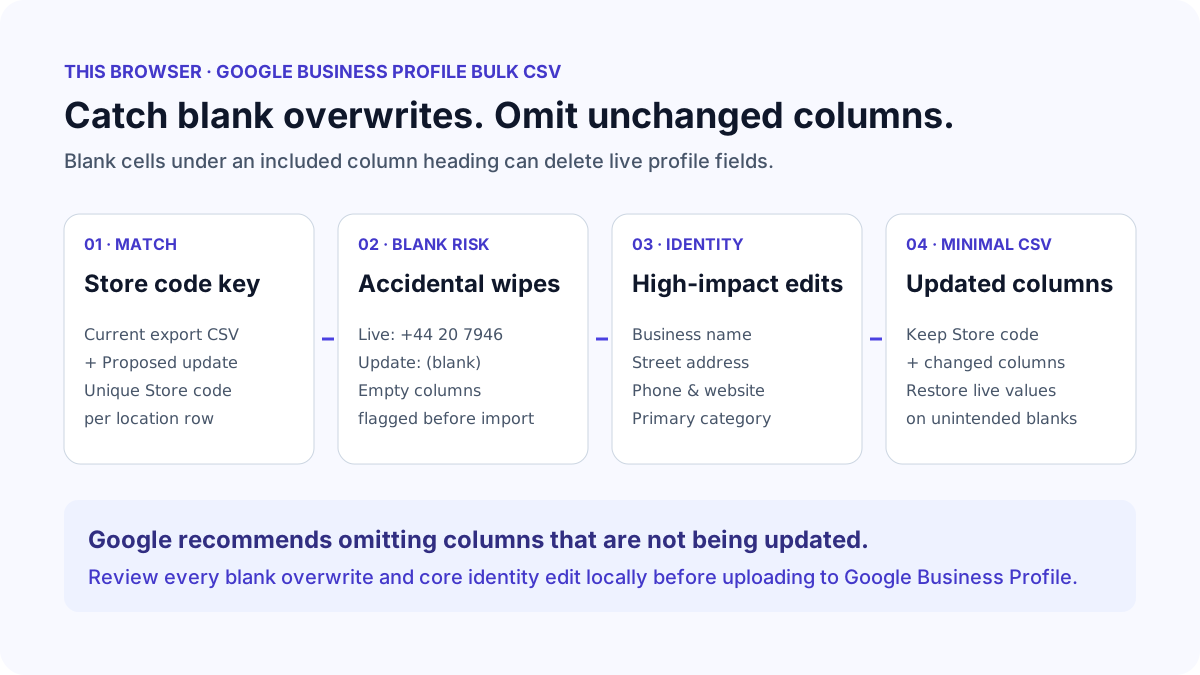
What to run
Download a fresh location export from your Google Business Profile Manager so you have a baseline of every live Store code, address, phone number, website and schedule. Then open Google Business Profile Bulk Update Checker and select both the current export CSV and your proposed bulk update CSV. Both files stay in the browser.
The checker detects the Store code column automatically and matches locations across both files. If your spreadsheet uses a custom or localised column heading for the business code, select that column from the Store code dropdowns after running the check.
Keep the default safe blank-handling mode unless you specifically intend to erase existing profile values. Safe mode omits columns that have no changes or are completely empty, and restores the current export value when an updated column has an accidental blank cell on another row.
Store code,Website,Monday hours
LON-001,https://example.co.uk/london-central,08:00-18:00
MAN-002,https://example.co.uk/manchester,08:30-17:30
How to read the result
Start with the blocking errors and preflight warnings. Missing or duplicate Store codes block the download because Google uses the Store code to identify which location to modify. A Store code that exists in the proposed update but not in the current export is flagged as a new location so you can spot a mistyped code before Google creates a duplicate listing.
Review every row marked Blank replacing value. Google's documentation warns that blank cells under an included column heading can clear the existing field on the live profile. If a column is completely empty in your update file, leave it unchecked so the column heading is omitted from the reviewed CSV.
Check high-impact edits separately from routine hours or description updates. Changes to Business name, street address, Primary phone, Website or Primary category can trigger re-verification or manual review in Google Business Profile.
| What you see | Why it matters | What to do |
|---|---|---|
| All-blank update column | An included column heading with empty cells can wipe existing values across locations | Uncheck the column so it is omitted from the reviewed CSV |
| Blank replacing value on one row | Another location updated that column, leaving this location's cell empty | Keep safe mode enabled to restore the current export value for that row |
| New or unknown Store code | A typo in a Store code can create an unintended new location | Compare the code against the current export or uncheck Include new Store codes |
| Case mismatch in Store code | LON-001 and lon-001 may not match cleanly across tools | Update the proposed code to match the exact casing in the current export |
| Name, address or category changed | Core identity edits can trigger profile re-verification | Verify that the change is intentional before including that column |
What to open next
If either CSV fails to parse because Excel saved it with semicolon separators, broken quotes, or garbled characters, open CSV Fixer first. It inspects the original file encoding, repairs UTF-8 misread as Windows-1252 upon approval, and preserves leading zeros in numeric Store codes such as 00421.
Once the reviewed columns and before-and-after preview match your intended edits, tick the confirmation checkbox and download the reviewed update CSV. You can also download the change report CSV to keep an audit trail of every modified field and omitted column.
Stop when
Stop when every blocking error is resolved, all-blank and unchanged columns are omitted from the output, and every remaining change in the side-by-side preview has been verified against your source instructions.
Do not treat a clean preflight check as a guarantee that Google will publish every edit immediately. Google Business Profile applies its own category taxonomy, formatting rules and verification checks during import.
References
Use the linked specifications and product documentation to check behavior in your own environment.
Continue troubleshooting
- How to Fix CSV Encoding, Columns and Leading Zeros in Excel
- How to Fix a QuickBooks Bank CSV Import
- How to Fix GA4 Cost Data CSV Import and UTM Matching Errors
- How to Fix Google Workspace Bulk User CSV Upload Errors
- How to Avoid Accidental Grade Overwrites in Moodle Gradebook CSV Imports
- How to Merge Recurring Microsoft Teams Attendance Reports
- How to Fix Azure DevOps Test Case CSV and Test Step Import Errors
- How to Check and Combine Windows Autopilot CSV Exports
- How to Preview Cloudflare Pages Header Rules Before Deployment
- How to Review Pinterest Bulk Pin Boards and Publishing Schedules
- How to Check Jira CSV Parent References and Hierarchy
- How to Check ShipStation Product CSV Updates Before Import
- How to Understand eBay Bulk Upload Results and Retry Failed Records
- How to Fix Google My Maps CSV Import and Coordinate Errors
- How to Fix Microsoft Teams Shifts Excel Import Errors
- How to Fix Webflow CMS CSV Import Reference and Slug Errors
- How to Fix Canva Bulk Create CSV and Spreadsheet Errors
- How to Clean and Split Email CSV for Klaviyo and Mailchimp
- How to Format and Map a Google Contacts CSV Import
- How to Fix Cloudflare Bulk Redirect CSV Errors
- How to Fix Google Ads Editor CSV Import Errors
- How to Explain a Stripe Payout That Does Not Match the Bank
- How to extract Word tables to Excel
- How to convert Excel formula commas and semicolons
Related tools
Frequently asked questions
Why should I omit unchanged columns from a bulk update spreadsheet?
Google recommends including only the Store code column and the columns you want to update. Omitting unchanged columns prevents blank cells or stale values in other columns from overwriting live profile information.
What happens if I leave a cell blank in a column I am updating?
If you include a column because one location changed, leaving that column blank on another row can clear the second location's existing value. The checker's safe mode restores the current export value for that blank cell unless you explicitly choose to keep blanks.
Can this tool upload changes directly to my Google Business Profile account?
No. The checker compares your current export CSV and proposed update CSV locally in the browser and produces a reviewed CSV file for you to upload in Google Business Profile Manager.