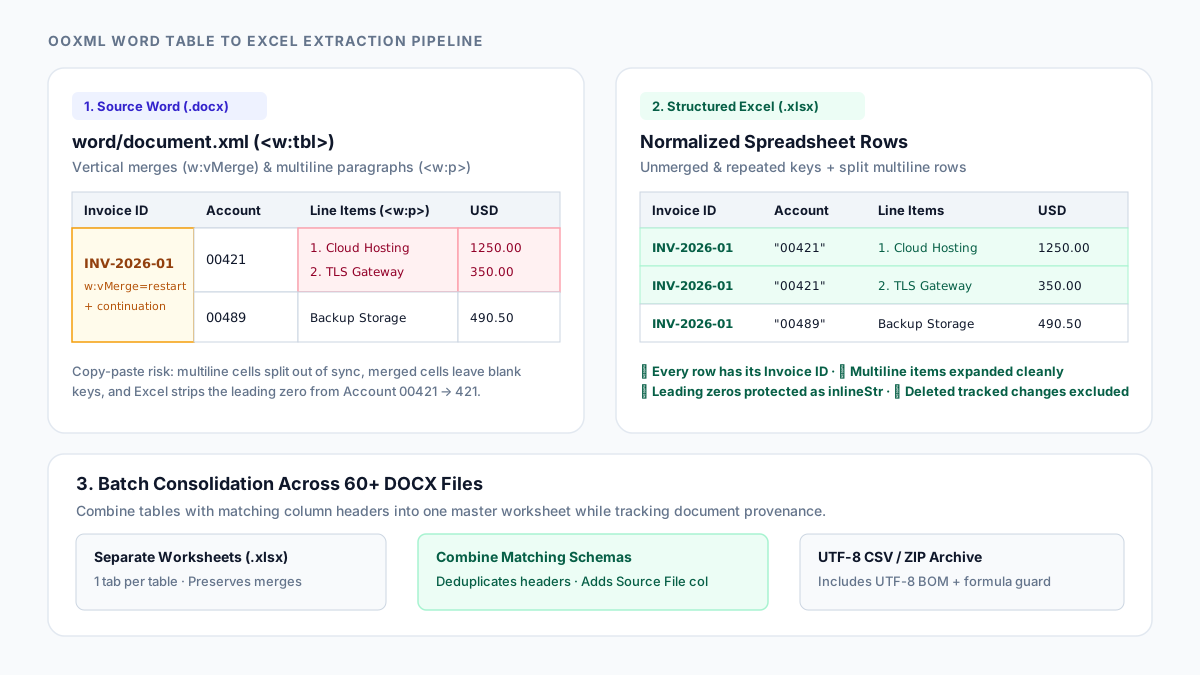
Why copying Word tables into Excel corrupts row and column alignment
When you copy a table from Microsoft Word and paste it into Excel, the clipboard transfers an HTML fragment rather than a structured spreadsheet grid. If a single Word table cell contains multiple paragraphs (<w:p>) or manual line breaks (<w:br/>)—such as three line items listed inside one invoice row—Excel frequently interprets each paragraph break as a brand-new spreadsheet row. The remaining single-line columns in that row stay on the first line, leaving unaligned blank gaps and shifting adjacent values.
Merged cells cause a second class of silent data corruption. In a Word report, authors often merge a category or invoice number vertically across several rows (<w:vMerge>) or span a banner across multiple columns (<w:gridSpan>). Even when Excel preserves the visual merge, only the top-left cell of the merged region holds a value; every other covered cell is empty. The moment you sort, filter, or feed that worksheet into a PivotTable, rows below the top-left cell lose their category identifier.
Repeating manual cleanup across 40, 60, or 100 Word documents is slow and error-prone. Worse, basic text-scraping scripts that read raw XML text nodes without walking the Office Open XML table specification will concatenate deleted Track Changes (<w:delText>) with active figures and shift columns left whenever a cell spans multiple grid positions.
How Office Open XML (.docx) represents table grids, spans, and revisions
A .docx file is a standard PKZIP archive whose primary document body lives at word/document.xml (defined in ECMA-376 Part 1, §17.4). Each table is a <w:tbl> element containing table rows (<w:tr>) and table cells (<w:tc>). If you unpack a .docx archive and inspect word/document.xml in XML Formatter, you will see that Word does not store explicit (row, column) coordinates on every cell. Instead, column positions are implied by the sequence of cells and their span properties.
Horizontal merges are declared inside a cell’s property block (<w:tcPr>) using <w:gridSpan w:val="N"/>, which instructs the layout engine that one <w:tc> occupies N grid columns. Rows that start indented from the left table border declare <w:gridBefore w:val="N"/> inside <w:trPr>. Vertical merges work across consecutive rows using <w:vMerge w:val="restart"/> on the starting cell and <w:vMerge/> (or w:val="continue") on the cells directly beneath it at the same grid column offset.
Accurate extraction requires reconstructing the full two-dimensional coordinate matrix before exporting. The parser must also ignore revision-tracking deletions (<w:del>, <w:delText>, <w:moveFrom>) and Word field instruction strings (<w:instrText>, such as raw HYPERLINK or REF codes) so that only accepted, visible text reaches the spreadsheet.
| Word OOXML Element | Meaning in WordprocessingML | Naive Scraper / Paste Result | Accurate Spreadsheet Mapping |
|---|---|---|---|
| <w:gridSpan w:val="N"/> | Cell spans N horizontal grid columns | Columns to the right shift left by N-1 | Advance column cursor by N; write <mergeCell> or repeat value |
| <w:vMerge w:val="restart"/> | Starts a vertical merge down a column | Continuation rows have blank key cells | Track span down rows; preserve merge or repeat key in each row |
| <w:gridBefore w:val="N"/> | Skips N columns before first cell in row | Entire row shifts left by N columns | Pad N leading cells before placing the first <w:tc> |
| Multiple <w:p> or <w:br/> | Multiline paragraphs inside one cell | Pasted paragraphs split into unaligned rows | Keep in-cell line breaks with wrapText, or expand into aligned rows |
| <w:del> / <w:delText> | Tracked deletion still stored in XML | Deleted numbers concatenate with new text | Exclude <w:del>, <w:moveFrom>, and <w:instrText> nodes |
| Nested <w:tbl> in <w:tc> | Sub-table embedded inside a parent cell | Inner <w:tr> rows corrupt outer table grid | Scope row traversal to direct table level; extract nested tables separately |
How to batch-convert multiple Word tables to Excel or CSV
Open Word Tables to Excel and drag one or more .docx files into the drop zone (or click Load sample batch to inspect a worked three-document example). All decompression and XML parsing happen locally in your browser memory.
Choose your Workbook layout based on how the documents are structured. Select Separate worksheet per table when a document contains distinct tables (such as an executive summary, a pricing schedule, and an SLA table) that belong on individual tabs. Select Combine tables with matching column headers when you are consolidating dozens of standardized forms or regional reports; the converter groups tables whose normalized header rows match, deduplicates the repeated header rows, and prepends Source File and Table # columns so every row retains an audit trail.
Select your Merged cells strategy. Keep Preserve merged cells in Excel (.xlsx) if you want the spreadsheet to look visually identical to the Word document. Switch to Unmerge & repeat value in all spanned cells if you plan to sort, filter, run VLOOKUP/XLOOKUP, or build PivotTables in Excel.
If your Word tables pack multiple items into single cells using line breaks, set Multiline cells to Split multiline cells into separate aligned rows. The converter expands each multiline row into N individual rows, repeats single-line identifiers (such as Invoice ID or Account Code) across the split rows, and flags an explicit alignment warning if two columns in the same row contain different numbers of lines.
// Example: How a 1-row multiline Word cell expands into 2 aligned spreadsheet rows
Source Word Row (<w:tr>):
  Col A (Single line):  "INV-2026-01"
  Col B (Single line):  "00421"
  Col C (2 <w:p> lines): "Cloud Hosting Tier 2\nDedicated TLS Gateway"
  Col D (2 <w:p> lines): "1250.00\n350.00"

Expanded Excel Rows (Multiline = Split rows, Repeat single-line = On):
  Row 1: ["INV-2026-01", "00421", "Cloud Hosting Tier 2",  1250.00]
  Row 2: ["INV-2026-01", "00421", "Dedicated TLS Gateway",  350.00]
Preventing silent Excel corruption: leading zeros, long IDs, and formulas
One of the most damaging spreadsheet errors happens after table extraction: Microsoft Excel aggressively coerces text that looks numeric or date-like. An account code or postal code such as 00421 becomes the integer 421, a 16-digit reference number is truncated to 15 significant digits in scientific notation (1.23457E+15), and a hyphenated code like 3-4 turns into March 4.
To prevent silent data loss, the converter’s Smart numbers mode inspects every non-header cell before writing the SpreadsheetML worksheet (xl/worksheets/sheetN.xml). Clean finite numbers up to 15 digits without leading zeros are written as numeric cells (t="n") so you can immediately sum and average them. Any value with a leading zero (such as 00421), any integer exceeding 15 digits, and any text starting with formula-triggering characters (=, +, -, @) is written as an explicit literal string cell (t="inlineStr" with xml:space="preserve").
When exporting to CSV, the converter prepends a UTF-8 Byte Order Mark (BOM) so desktop Excel on Windows opens currency symbols (€, £) and accented characters without UTF-8 mojibake, and prefixes cells beginning with =, +, or @ with a safe apostrophe guard. If you later write spreadsheet formulas over the extracted data and share them across US and European teams, use Excel Formula Separator Converter to adapt comma and semicolon argument delimiters, or Find and Replace to clean up text labels.
References
Use the linked specifications and product documentation to check behavior in your own environment.
Continue troubleshooting
- How to convert Excel formula commas and semicolons
- How to format XML and read a parse error
- How to Fix GA4 Cost Data CSV Import and UTM Matching Errors
- How to Fix Google Workspace Bulk User CSV Upload Errors
- How to Avoid Accidental Grade Overwrites in Moodle Gradebook CSV Imports
- How to Merge Recurring Microsoft Teams Attendance Reports
- How to Fix Azure DevOps Test Case CSV and Test Step Import Errors
- How to Check and Combine Windows Autopilot CSV Exports
- How to Preview Cloudflare Pages Header Rules Before Deployment
- How to Review Pinterest Bulk Pin Boards and Publishing Schedules
- How to Check Jira CSV Parent References and Hierarchy
- How to Check ShipStation Product CSV Updates Before Import
- How to Understand eBay Bulk Upload Results and Retry Failed Records
- How to Fix Google My Maps CSV Import and Coordinate Errors
- How to Fix Microsoft Teams Shifts Excel Import Errors
- How to Fix Webflow CMS CSV Import Reference and Slug Errors
- How to Fix Canva Bulk Create CSV and Spreadsheet Errors
- How to Clean and Split Email CSV for Klaviyo and Mailchimp
- How to Format and Map a Google Contacts CSV Import
- How to Fix Cloudflare Bulk Redirect CSV Errors
- How to Check a Google Business Profile Bulk Update CSV
- How to Fix Google Ads Editor CSV Import Errors
- How to Explain a Stripe Payout That Does Not Match the Bank
- How to Fix a QuickBooks Bank CSV Import
- How to Fix CSV Encoding, Columns and Leading Zeros in Excel
Related tools
Frequently asked questions
Why do multiline cells in Word split into extra rows when pasted into Excel?
When you copy a Word table to the clipboard, Word exports an HTML table where paragraphs inside a cell can be interpreted by Excel as row breaks. Extracting the table directly from the .docx XML preserves paragraphs inside the cell or lets you split them into properly aligned rows.
How can I merge tables from dozens of Word documents into one Excel sheet?
Drop all of the .docx files into the converter at once and set Workbook layout to Combine tables with matching column headers or Stack all selected tables into one sheet. The tool consolidates the rows, removes duplicate headers, and adds a Source File column.
What is the difference between preserving merged cells and unmerging with repeated values?
Preserving merged cells writes native Excel merge regions so the sheet looks visually identical to Word, but only the top-left cell contains data. Unmerging and repeating values fills every spanned cell with the label so you can sort, filter, and use PivotTables without blank keys.
How does the converter stop Excel from deleting leading zeros in codes like 00421?
In Smart numbers mode, any cell containing leading zeros (such as 00421) or more than 15 digits is stored as an explicit inlineStr text cell in the .xlsx XML rather than a numeric cell, preventing Excel from stripping leading zeros or truncating digits.
Why cannot the tool open .doc files or password-protected .docx files?
Legacy Word 97–2003 (.doc) files and password-protected .docx files are stored inside a binary OLE2 container rather than an unencrypted Office Open XML ZIP archive. Re-save legacy files as .docx or remove the password in Word before converting.