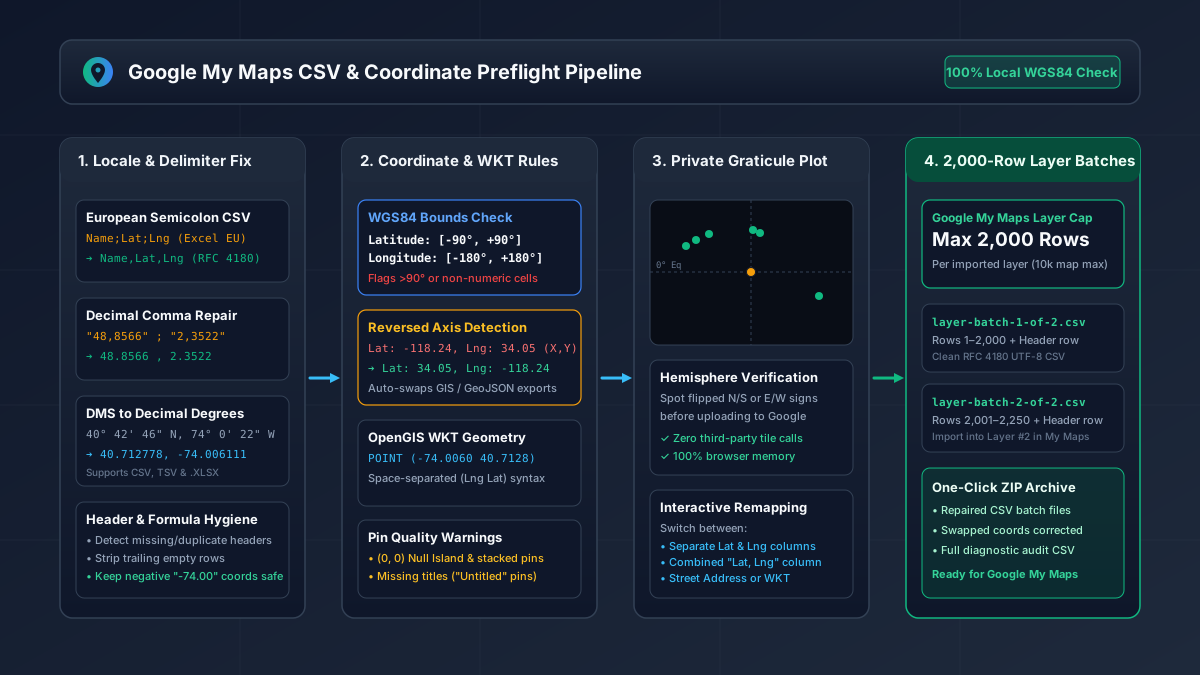
Load the intended location sheet
Upload one CSV, TSV or XLSX location sheet. Multiple populated workbook sheets require a separate export. Confirm the title and location columns. The original stays unchanged and the checker uses a 10 MB safety limit.
Choose separate coordinates, combined coordinates, address text or WKT POINT. This checker does not validate polygons or lines. Formula cells and malformed text are rejected rather than silently changed.
Inspect errors and selected corrections
Coordinate swaps and decimal-comma corrections start unchecked. Select only the relevant options and press Check again. A range check cannot identify reversed axes when both values fit either range; consult the source.
Missing or invalid locations block candidates. The supplied problem fixture has an invalid Arctic location with no known intended coordinates. Diagnose it without inventing a replacement.
Review candidates and numbered batches
The documented import limit is 2,000 rows per file. A larger dataset can be split after other blocking errors are resolved. Inspect the count and first and last records of each batch.
The 2,250-row recording fixture produces two batches with 2,000 and 250 records. Changes to inputs or settings clear earlier downloads. Preserve the original and recheck before exporting.
Confirm the actual My Maps result
Create a layer, choose Import, and select the reviewed file. Confirm the position and title columns and inspect the plotted locations and returned messages.
The local preview uses a coordinate grid without external map tiles. It does not geocode addresses, establish that a place exists, or prove that an import will succeed.
References
Use the linked specifications and product documentation to check behavior in your own environment.
Continue troubleshooting
- How to Fix GA4 Cost Data CSV Import and UTM Matching Errors
- How to Fix Google Workspace Bulk User CSV Upload Errors
- How to Avoid Accidental Grade Overwrites in Moodle Gradebook CSV Imports
- How to Merge Recurring Microsoft Teams Attendance Reports
- How to Fix Azure DevOps Test Case CSV and Test Step Import Errors
- How to Check and Combine Windows Autopilot CSV Exports
- How to Preview Cloudflare Pages Header Rules Before Deployment
- How to Review Pinterest Bulk Pin Boards and Publishing Schedules
- How to Check Jira CSV Parent References and Hierarchy
- How to Check ShipStation Product CSV Updates Before Import
- How to Understand eBay Bulk Upload Results and Retry Failed Records
- How to Fix Microsoft Teams Shifts Excel Import Errors
- How to Fix Webflow CMS CSV Import Reference and Slug Errors
- How to Fix Canva Bulk Create CSV and Spreadsheet Errors
- How to Clean and Split Email CSV for Klaviyo and Mailchimp
- How to Format and Map a Google Contacts CSV Import
- How to Fix Cloudflare Bulk Redirect CSV Errors
- How to Check a Google Business Profile Bulk Update CSV
- How to Fix Google Ads Editor CSV Import Errors
- How to Explain a Stripe Payout That Does Not Match the Bank
- How to Fix a QuickBooks Bank CSV Import
- How to Fix CSV Encoding, Columns and Leading Zeros in Excel
- How to extract Word tables to Excel
- How to convert Excel formula commas and semicolons
Related tools
Frequently asked questions
Does passing guarantee a successful import?
No. Confirm the actual import result and account settings in the destination platform after reviewing the candidate.
Is the original file changed?
No. The original remains unchanged. Candidate files are separate downloads and source decisions must be made deliberately.
Are file contents uploaded to a server?
No. Parsing, checks and candidate generation run locally without sending your file contents to the platform.