What to run
Open Moodle Gradebook CSV Import Safety Checker.
Upload or paste your proposed Moodle gradebook import CSV in Step 1.
Optionally export the current Moodle gradebook (via Course administration → Grades → Export → CSV) and paste it into Step 2 for comparative overwrite checking.
Validation runs 100% locally in your browser. Sensitive student grades, institutional ID numbers, and email addresses are never transmitted to external servers.
Click Validate Gradebook CSV to inspect mapping headers, row uniqueness, and grade value distributions.
// Standard Moodle Gradebook CSV import format
"First name","Last name","ID number","Email address","Assignment 1 (Real)","Midterm Exam (Real)"
"Jane","Doe","STU1001","[email protected]","88.5","92"
"John","Smith","STU1002","[email protected]","76.0","84"
"Alex","Rivera","STU1003","[email protected]","95.0","90"
How to read the result
Review the status banner and stat cards for Students, Grade Items, Errors, and Potential Blanks.
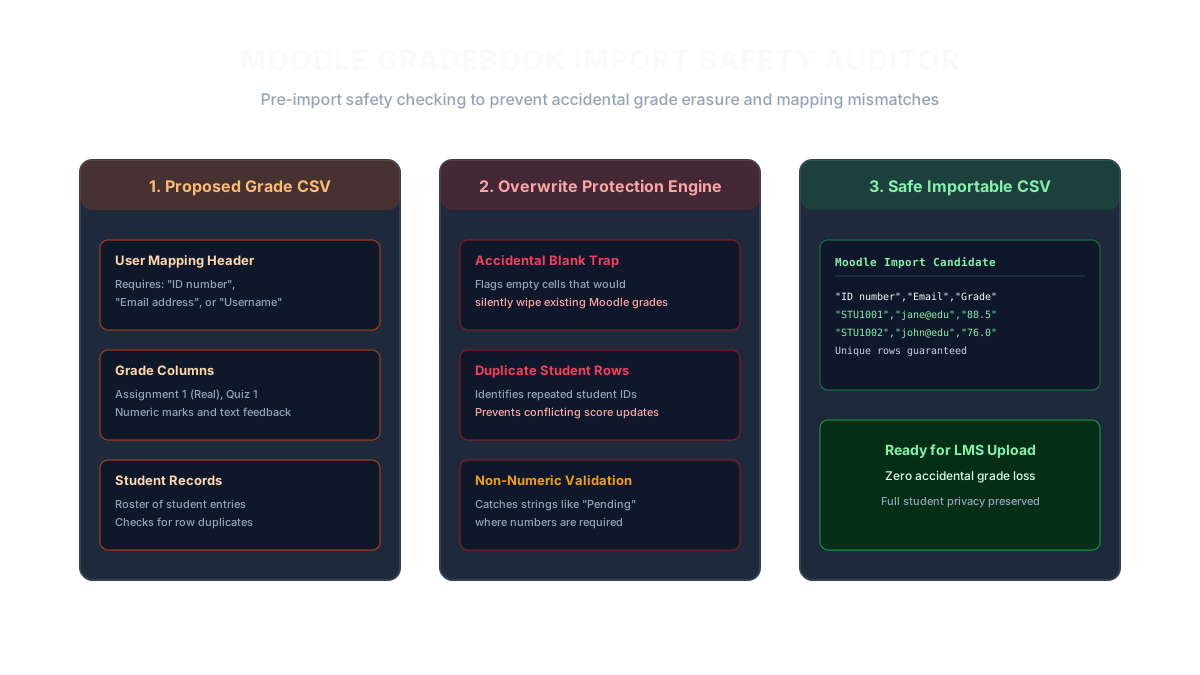
Verify the identified User Mapping Key. Moodle requires unique matching via "ID number", "Email address", or "Username". If this key is missing or blank on any row, Moodle will fail to match grades to enrolled students.
Check for duplicate student records. Multiple rows with identical identifiers cause non-deterministic grade updates or database rejections in Moodle.
Watch for accidental blank grade overrides. If your update contains blank cells for an existing grade item, Moodle may overwrite existing scores with null or zero marks.
Download the sanitized importable CSV and diagnostic audit report.
| LMS Failure or Hazard | Root Cause in Spreadsheet | Safety Resolution |
|---|---|---|
| Existing assignment marks wiped out | Blank cells imported into a column that already has grades in Moodle | Leave unassessed cells unmapped during import or mark as "-" |
| Student not found during import | Header mismatch: used "Student ID" instead of Moodle "ID number" | Rename header to match exact Moodle profile field identifier |
| Duplicate record import failure | Same student appears on multiple rows (e.g. multi-grader sheets) | Deduplicate rows so each student has exactly one record |
| Non-numeric grade rejected | Cell contains text like "Pending", "Excused", or letter grade | Replace text with numeric mark or configure custom grade scale |
What to open next
If your course includes interactive modules, check packages with H5P Package & Dependency Checker.
If you have general CSV delimiter or encoding issues, repair them with CSV Fixer.
If you need to map contact lists into LMS directories, format them with Google Contacts CSV Import Mapper.
In Moodle: Navigate to Grade administration → Import → CSV file, upload your sanitized CSV, map your verified ID key, and preview the import.
Stop when
Stop when Errors is zero, student identifiers are confirmed unique across all rows, and no existing grades are at risk of being blanked out.
Always test grade imports with a single test student record in a non-production staging course before performing bulk cohort updates.
References
Use the linked specifications and product documentation to check behavior in your own environment.
Continue troubleshooting
- How to Fix H5P Missing Required Library and Upload Errors
- How to Fix CSV Encoding, Columns and Leading Zeros in Excel
- How to Fix GA4 Cost Data CSV Import and UTM Matching Errors
- How to Fix Google Workspace Bulk User CSV Upload Errors
- How to Merge Recurring Microsoft Teams Attendance Reports
- How to Fix Azure DevOps Test Case CSV and Test Step Import Errors
- How to Check and Combine Windows Autopilot CSV Exports
- How to Preview Cloudflare Pages Header Rules Before Deployment
- How to Review Pinterest Bulk Pin Boards and Publishing Schedules
- How to Check Jira CSV Parent References and Hierarchy
- How to Check ShipStation Product CSV Updates Before Import
- How to Understand eBay Bulk Upload Results and Retry Failed Records
- How to Fix Google My Maps CSV Import and Coordinate Errors
- How to Fix Microsoft Teams Shifts Excel Import Errors
- How to Fix Webflow CMS CSV Import Reference and Slug Errors
- How to Fix Canva Bulk Create CSV and Spreadsheet Errors
- How to Clean and Split Email CSV for Klaviyo and Mailchimp
- How to Format and Map a Google Contacts CSV Import
- How to Fix Cloudflare Bulk Redirect CSV Errors
- How to Check a Google Business Profile Bulk Update CSV
- How to Fix Google Ads Editor CSV Import Errors
- How to Explain a Stripe Payout That Does Not Match the Bank
- How to Fix a QuickBooks Bank CSV Import
- How to extract Word tables to Excel
- How to convert Excel formula commas and semicolons
Related tools
Frequently asked questions
Why did importing a CSV into Moodle erase existing grades?
If a spreadsheet contains blank cells for an existing grade item column (for example, when importing feedback only), Moodle can treat those blank cells as null or zero values, wiping out previously recorded grades.
How does Moodle match spreadsheet rows to enrolled students?
Moodle requires you to select a unique identifier field during the import mapping step—most commonly "ID number" or "Email address". This checker verifies that your chosen identifier is populated and unique across all rows.
Is student grade data secure when using this tool?
Yes. All parsing and safety verification runs purely on your local computer inside your web browser. No student information or file contents are ever transmitted across the internet.