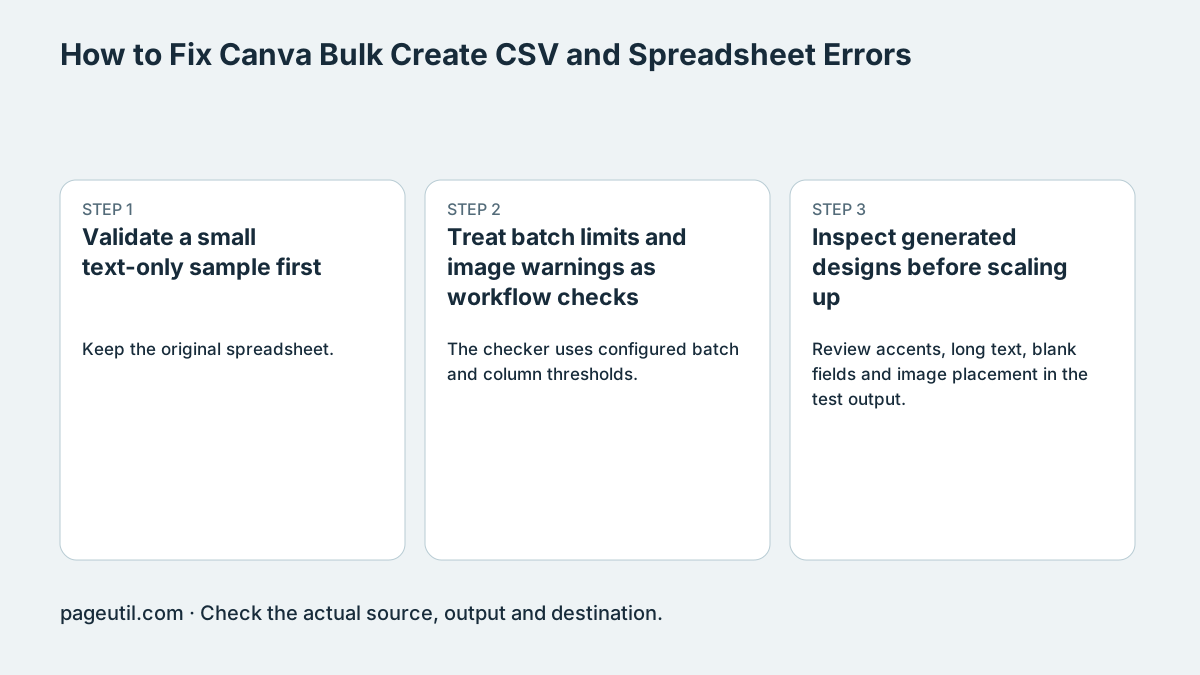
Validate a small text-only sample first
Keep the original spreadsheet. Use a header row with distinct, non-empty labels and one complete data row per item. Confirm that quoted commas or newlines stay inside a cell rather than shifting later columns.
The synthetic sample below should describe two records. Load it in the checker, inspect the preview, then connect the fields to two text elements in a copy of your Canva design. Generate the small test before uploading your production dataset.
Name,Role
Ava Patel,Designer
Sam Morgan,Coordinator
Treat batch limits and image warnings as workflow checks
The checker uses configured batch and column thresholds. Those are its local rules, not proof of a universal current Canva maximum across Bulk Create, Sheets and every plan. Check the current upload interface and linked Canva help for the path you are using.
A cell containing an image URL is still spreadsheet data. Whether it populates an image element depends on Canva’s supported data source and mapping controls. Test one actual image in the chosen workflow. Do not assume a URL, an embedded workbook image or a local warning alone establishes that Canva will render it.
Inspect generated designs before scaling up
Review accents, long text, blank fields and image placement in the test output. If a raw URL appears as text, inspect the connected element type and the supported image-source mechanism in Canva rather than editing the URL until a local warning disappears.
After the test works, split the full file into manageable candidate batches, verify their counts and import each through the same tested path. Passing local checks does not establish image access, account permissions, layout fit or successful generation.
References
Use the linked specifications and product documentation to check behavior in your own environment.
Continue troubleshooting
- How to Fix CSV Encoding, Columns and Leading Zeros in Excel
- How to Clean and Split Email CSV for Klaviyo and Mailchimp
- How to Fix GA4 Cost Data CSV Import and UTM Matching Errors
- How to Fix Google Workspace Bulk User CSV Upload Errors
- How to Avoid Accidental Grade Overwrites in Moodle Gradebook CSV Imports
- How to Merge Recurring Microsoft Teams Attendance Reports
- How to Fix Azure DevOps Test Case CSV and Test Step Import Errors
- How to Check and Combine Windows Autopilot CSV Exports
- How to Preview Cloudflare Pages Header Rules Before Deployment
- How to Review Pinterest Bulk Pin Boards and Publishing Schedules
- How to Check Jira CSV Parent References and Hierarchy
- How to Check ShipStation Product CSV Updates Before Import
- How to Understand eBay Bulk Upload Results and Retry Failed Records
- How to Fix Google My Maps CSV Import and Coordinate Errors
- How to Fix Microsoft Teams Shifts Excel Import Errors
- How to Fix Webflow CMS CSV Import Reference and Slug Errors
- How to Format and Map a Google Contacts CSV Import
- How to Fix Cloudflare Bulk Redirect CSV Errors
- How to Check a Google Business Profile Bulk Update CSV
- How to Fix Google Ads Editor CSV Import Errors
- How to Explain a Stripe Payout That Does Not Match the Bank
- How to Fix a QuickBooks Bank CSV Import
- How to extract Word tables to Excel
- How to convert Excel formula commas and semicolons
Related tools
Frequently asked questions
Are local batch thresholds universal Canva limits?
No. Check the current entry point and account requirements rather than treating checker presets as platform-wide rules.
Does an image URL cell always become a picture?
No. The data source and element mapping must be supported in the actual Canva workflow; test one image first.
Does a clean spreadsheet guarantee correct designs?
No. Review generated text, blanks, images and layout in a small actual test before scaling up.