Choose table export or CSV repair
Use Table to text for separated text output, or Inspect and repair CSV for encoding, repair approval and Excel downloads. Only the selected task is shown; switching keeps the current inputs and results in this page. In Table to text, paste a range directly or expand Choose a file instead of pasting for a UTF-8 CSV/TSV upload. Choosing a file replaces pasted input; typing new text replaces the file source.
Choose repair or table-to-text export
At the top of CSV Fixer, choose Inspect and repair CSV for encoding diagnosis, reviewed text repairs and XLSX export. Choose Table to text to turn a displayed spreadsheet range or CSV/TSV into tab-, comma- or pipe-separated text. Both tasks reject native XLSX/XLS input; paste a range or export it as CSV/TSV first.
In Table to text, select a file or paste the range, check Input separator and choose Output separator. A CSV file starts with separator detection; a TSV file starts with Tab. Click Preview table text and check the row/column count before Copy text or Download text. Quoting preserves embedded separators and line breaks. Optional formula protection adds an apostrophe to formula-like values and reports how many cells changed.
Table-to-text file input is UTF-8. If the original file needs Windows-1252, Shift JIS or another supported encoding, use Inspect and repair CSV instead. Table-to-text can explicitly pad shorter rows or flatten cell line breaks, while the repair workflow blocks inconsistent record widths until corrected. These are different behaviours.
What to run
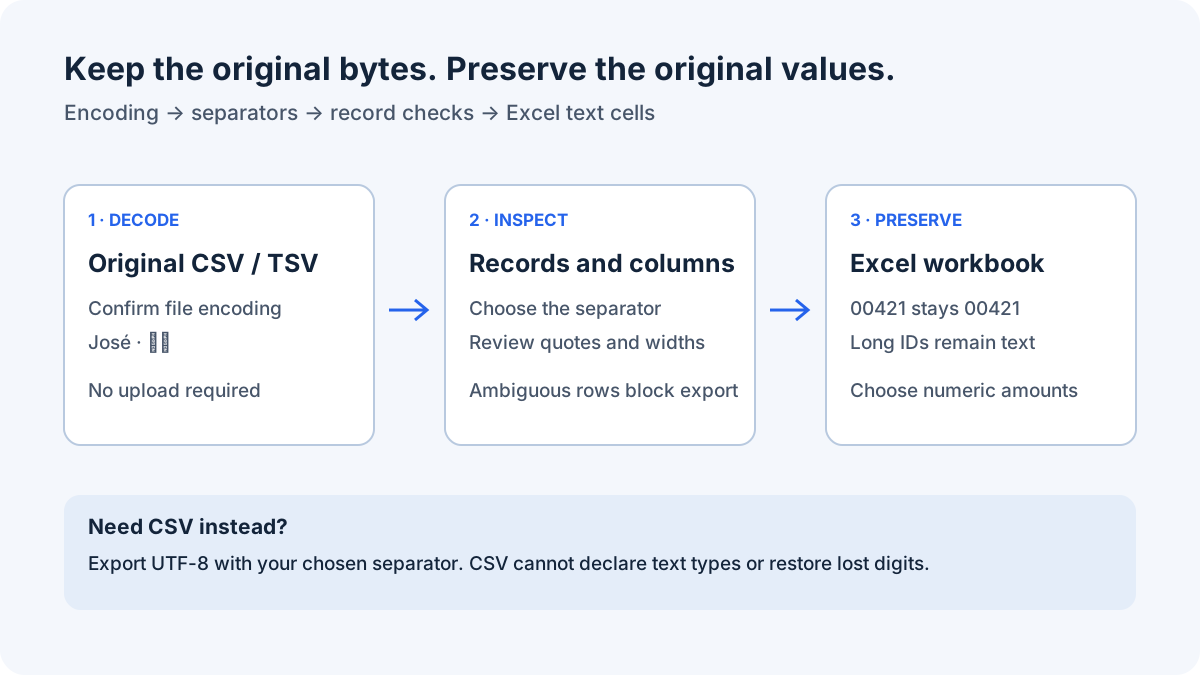
Open CSV Fixer and choose the original CSV or TSV file. File bytes are decoded locally; nothing is uploaded. Auto mode recognizes UTF-16 byte order marks and otherwise validates UTF-8. If decoding fails, choose the original system encoding, such as Windows-1252 for some Western exports or Shift JIS for some Japanese exports. A successful decode alone does not prove that the encoding is correct: confirm names and punctuation in the preview.
Choose Auto detect for the input separator, or select comma, semicolon, tab or pipe explicitly. Excel regional settings can expect a different separator from the source. Mark whether the first record contains headings; duplicate headings are preserved rather than renamed or used as object keys. Paste is useful for structural checks, but pasted text has already been decoded and cannot be reinterpreted using the encoding selector.
Click Analyze CSV. Inspect the preview and diagnostics before downloading. The tool retains whitespace, empty fields, duplicate records and embedded line breaks. It removes one final empty parser record corresponding to a record terminator, while keeping actual blank records. The preview shows at most 50 records and 250 characters per cell; download values are complete.
id;name;tracking_number
00421;José;12345678901234567890
00007;東京;98765432109876543210
How to read the result
A one-column preview often indicates the wrong separator. Change it and analyze again. Commas or semicolons inside quoted fields are data, so splitting every line on a separator is not a valid repair. A quoted field can also span physical lines: diagnostics refer to parsed record numbers, which can differ from text-editor line numbers.
Malformed quotes and inconsistent record widths block both exports. The tool lists affected records instead of guessing which delimiter was omitted, dropping an extra field or padding an ambiguous row without review. Correct the source or choose the right separator and analyze again. Empty records are kept and can therefore trigger a width warning in a multi-column file.
Leading-zero, long-ID, date-like and scientific-notation counts identify possible Excel conversion risks; they do not establish that a value is corrupt. A source value such as 1E10 remains that exact string. A value saved as 12345678901234500000 cannot reveal the missing original digits. Replacement characters may also indicate that an earlier decoding step already destroyed information.
| Symptom | Action | Limit |
|---|---|---|
| All fields in one column | Select the correct input separator or export XLSX | CSV delimiter expectations depend on the importer |
| Garbled accented names | Decode the original bytes with the correct encoding | Saved mojibake can be reversed when a suggested change is approved |
| 00421 becomes 421 | Download XLSX with literal text cells | Deleted leading zeros cannot be inferred |
| Long tracking number changes | Keep original digits as text | Excel numeric precision is limited to 15 significant digits |
| Malformed quotes or uneven records | Inspect the listed records and correct the source | Ambiguous rows are not silently repaired |
What to open next
Review proposed text repairs before exporting. Suggestions reverse complete UTF-8 sequences that were misread as Windows-1252 or Latin-1, up to three encoding layers. For example, José can become José, and € can become €. Approve or reject each cell, or use the bulk controls. Pending and rejected suggestions preserve the original; no spelling guess is applied automatically. Compare Original source with Approved output side by side. The comparison includes the first 50 records; paginated repair cards cover suggestions throughout the file and show their full values.
Download Excel (.xlsx) when opening the result in Excel is your goal. Select columns that must remain text; risky identifiers are recommended initially. Unchecked columns convert only plain finite numbers with at most fifteen digits, allowing amount columns to participate in calculations. Leading-zero strings, long IDs, date-like codes and formula strings still remain text even in unchecked columns. The Excel comparison shows resulting values and Text or Number types. Use Protect all columns to retain every original text representation, including trailing decimal zeros.
Download clean CSV when another system needs delimited text. Choose its expected separator and whether to include a UTF-8 BOM. Microsoft recommends a BOM for opening UTF-8 CSV files normally in Excel. CSV quoting protects field boundaries, not data types; Excel can still reinterpret quoted numeric strings. For spreadsheet-bound CSV you can explicitly enable apostrophe prefixes for formula-like cells, but this changes their values. Prefer XLSX when exact text preservation in Excel matters.
If the data starts in Word tables, use Word Tables to Excel to extract the structured cells directly. If the issue concerns argument separators inside a real Excel formula, use Excel Formula Separator Converter. Changing CSV field separators and changing formula arguments are separate operations.
Stop when
Stop when the decoded characters match the source, the preview shows the intended columns, and all record diagnostics are resolved. Open the exported workbook and compare a few leading-zero codes and the longest IDs against the original text. Keep the original source alongside the output so you can verify any later conversion.
For files beyond 10 MB, 100,000 records, 256 columns or 500,000 cells, use a local data-processing workflow. XLSX export additionally blocks cells above 32,767 characters or with XML-incompatible characters rather than silently truncating or deleting content. Where possible, CSV export remains available for those cell-specific limitations.
References
Use the linked specifications and product documentation to check behavior in your own environment.
Continue troubleshooting
- How to extract Word tables to Excel
- How to convert Excel formula commas and semicolons
- How to Fix GA4 Cost Data CSV Import and UTM Matching Errors
- How to Fix Google Workspace Bulk User CSV Upload Errors
- How to Avoid Accidental Grade Overwrites in Moodle Gradebook CSV Imports
- How to Merge Recurring Microsoft Teams Attendance Reports
- How to Fix Azure DevOps Test Case CSV and Test Step Import Errors
- How to Check and Combine Windows Autopilot CSV Exports
- How to Preview Cloudflare Pages Header Rules Before Deployment
- How to Review Pinterest Bulk Pin Boards and Publishing Schedules
- How to Check Jira CSV Parent References and Hierarchy
- How to Check ShipStation Product CSV Updates Before Import
- How to Understand eBay Bulk Upload Results and Retry Failed Records
- How to Fix Google My Maps CSV Import and Coordinate Errors
- How to Fix Microsoft Teams Shifts Excel Import Errors
- How to Fix Webflow CMS CSV Import Reference and Slug Errors
- How to Fix Canva Bulk Create CSV and Spreadsheet Errors
- How to Clean and Split Email CSV for Klaviyo and Mailchimp
- How to Format and Map a Google Contacts CSV Import
- How to Fix Cloudflare Bulk Redirect CSV Errors
- How to Check a Google Business Profile Bulk Update CSV
- How to Fix Google Ads Editor CSV Import Errors
- How to Explain a Stripe Payout That Does Not Match the Bank
- How to Fix a QuickBooks Bank CSV Import
Related tools
Frequently asked questions
Can a CSV fixer recover rounded tracking numbers?
No. Use the original system export if Excel has already rounded the digits and the changed values were saved. The original digits cannot be inferred from the rounded result.
Does a UTF-8 BOM preserve leading zeros?
No. A byte order mark helps Excel recognize the encoding. It does not declare text column types or prevent automatic numerical conversion.
Can amounts stay numeric while identifiers stay text?
Yes. Select identifier columns for text protection and leave amount columns unchecked. Plain numbers with at most fifteen digits become numeric cells. Review the resulting values and types in the Excel comparison before downloading.
Can I undo a garbled-text repair?
Yes. Change its decision to Pending or Reject, or reset all decisions. The original source is retained and the preview and both exports update to match the current approvals.