Start with a working code
Choose the content type and enter its details before opening “2. Customise your design”. Confirm the plain code works first. A logo cannot fix a wrong number, unavailable page, or incomplete URL.
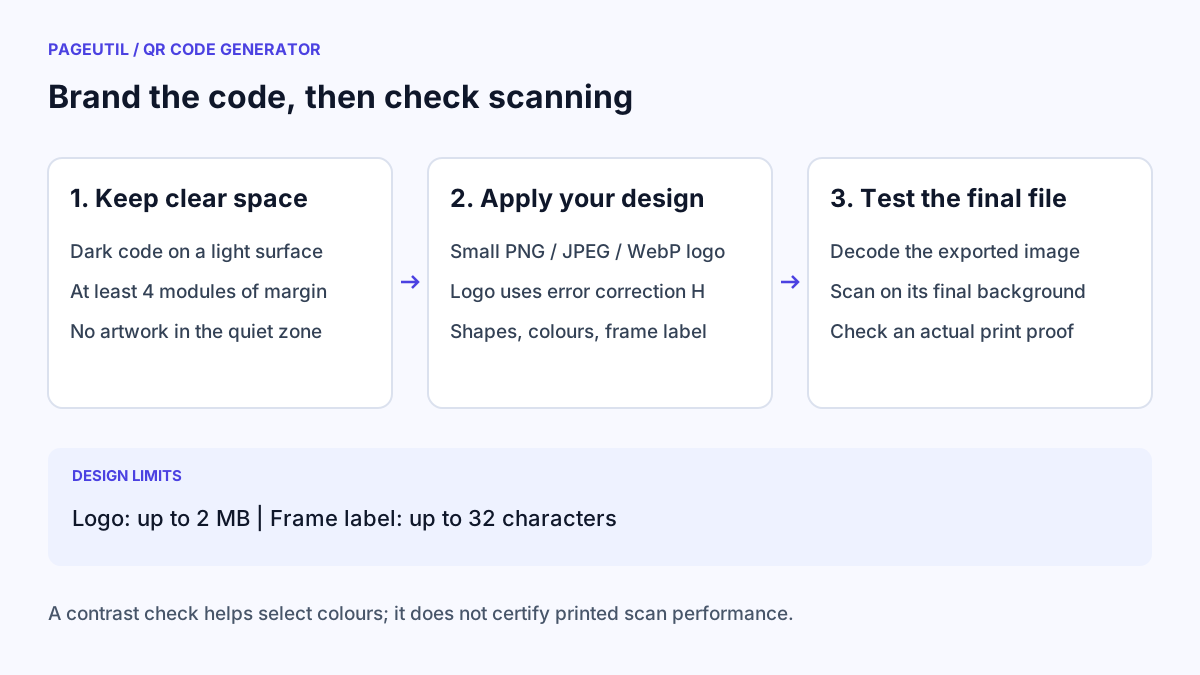
Keep the four-module quiet zone or choose six or eight modules for more space. A module is one small square of the code. Place labels and surrounding artwork outside that margin; the built-in frames preserve it.
Choose colours and shapes
Use “Code colour” for dark modules and “Background colour” for the lighter surface. The generator blocks colour pairs below its 3:1 contrast threshold and recommends stronger contrast below 4.5:1. These checks are a design aid, not a promise that a printed code will scan.
For a gradient, choose Horizontal gradient or Vertical gradient under “Colour style”, then set “Gradient end colour”. Both endpoints must remain dark enough against the background. Select square, rounded, or dot modules and choose a finder eye shape. Recheck scanning after changing these controls.
Use Contrast Checker to inspect colour pairs independently. Its text accessibility results do not certify QR readability, which also depends on size, printing, lighting, and the camera.
Upload a logo and add a frame
Choose a PNG, JPEG, or WebP image in “Centre logo”. The file must be no larger than 2 MB; the tool also rejects decoded images above 20 million pixels. SVG logo uploads are not supported. The logo is processed on your device and embedded in the generated files.
The tool keeps the logo small and automatically uses error correction H while it is present. The error correction control is disabled during that time. “Remove logo” restores your chosen correction level. High error correction helps recover damaged data but does not guarantee that any logo or design will scan.
Choose Border or Border with label under “Frame”. Use “Frame label” for up to 32 characters, such as “VIEW MENU” or “CHAT ON WHATSAPP”. The label describes the action; it does not alter the encoded content.
| Control | Changes | Check before sharing |
|---|---|---|
| Code colour and gradient | The dark modules and finder eyes | Both gradient ends remain dark on the final background |
| Module and finder eye shape | The appearance of the symbol | The final file still decodes on target phones |
| Centre logo | A small image inside the code; ECC H is automatic | The logo is visible and the code still scans |
| Frame label | Text outside the quiet zone | The label matches the destination and is not cropped |
Test the exported design
Download the actual file and inspect it with QR Code Scanner. Then scan it with a phone at the intended display size. If it struggles, remove the logo, return to square modules and finder eyes, strengthen contrast, or enlarge the code.
For transparent PNG or SVG, check the background where the file will be placed. Transparency does not preserve a light scanning surface. Use a light solid panel behind the code if the surrounding artwork is dark, patterned, or photographic. More troubleshooting steps are in How to Troubleshoot Printed QR Codes Not Scanning.
Stop when
The exported artwork scans on the actual background and a proof at the intended print size opens the right destination. Keep the quiet zone, logo, frame, and label intact when placing it into a larger design.
References
Use the linked specifications and product documentation to check behavior in your own environment.
Continue troubleshooting
- How to Choose QR Code SVG, PNG or JPEG
- QR Code Print Size and Scanning Distance Guide
- How to Create a WhatsApp QR Code
- How to Create Calendar Event and Location QR Codes
- How to Create Email, SMS and Phone QR Codes
- How to Create QR Codes for PDFs, Videos and Pages
- How to Create Restaurant Menu QR Codes
- How to Create Guest WiFi QR Codes
- How to Create vCard QR Codes for Business Cards
- How to Track QR Code Campaigns with UTM and GA4
- How to Put QR Codes on Product Packaging and Manuals
- How to Create a Google Review QR Code for Local Business
- Wedding Invitation and Event RSVP QR Codes
- How to Troubleshoot Printed QR Codes Not Scanning
- Static vs Dynamic QR Codes for Business Printing
- Best Free QR Code Generators
- How to make a QR code for a URL
Related tools
Frequently asked questions
Can I upload an SVG logo?
The centre logo control accepts PNG, JPEG, and WebP images up to 2 MB. Convert your SVG logo to a suitable raster image before uploading.
Why is error correction locked after adding a logo?
The generator automatically uses H error correction while a logo is present. Removing the logo restores the correction level you selected.
Does the frame label change the destination?
No. The label is part of the artwork outside the quiet zone. The content fields determine the data stored in the code.