Choose the action the reader expects
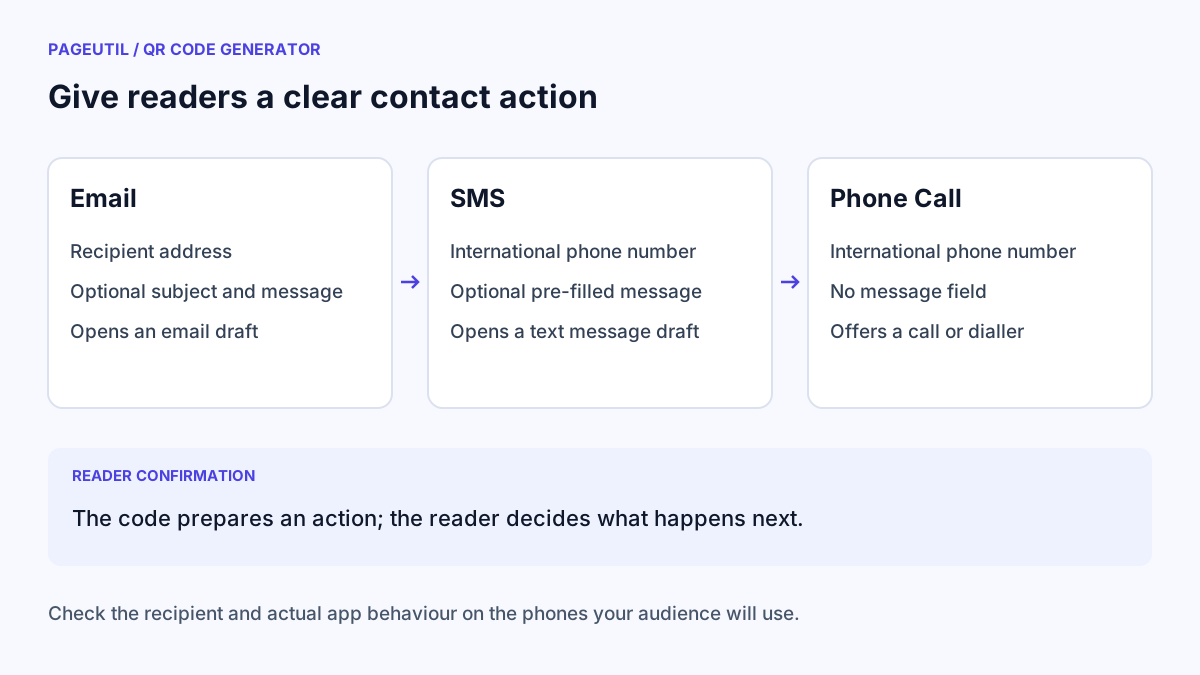
Choose Email for a recipient address with an optional subject and message. Choose SMS for a phone number and optional text. Choose Phone Call when the main action is calling a number. Include the country code for numbers that people may use internationally.
These codes use mailto:, sms:, or tel: content. They rely on an appropriate app being available on the device. A computer without a configured email or phone application may ask the user to choose one instead of opening a ready-to-use draft.
| Mode | Required field | Optional content | Expected action |
|---|---|---|---|
| Recipient email | Subject and message | Open an email draft | |
| SMS | Phone number | Pre-filled text | Open a message draft |
| Phone Call | Phone number | None | Offer a call or open a dialler |
Enter normal text, then inspect the payload
Choose the mode under “1. Choose your content” and fill in the visible fields. Enter ordinary spaces and punctuation in subjects and messages. The generator handles URL encoding; do not replace spaces with %20 yourself.
Open “Inspect encoded content” and check the destination. These fictional examples show how the values appear inside a code:
Email
mailto:[email protected]?subject=Booking%20question

SMS
sms:+447700900077?body=Please%20call%20me

Phone Call
tel:+447700900077
Keep the message short and suitable for public display
Anyone who can scan the finished code can read the address, number, and message. Generating it locally avoids uploading the payload to PageUtil; it does not hide that information in the published code.
Do not include passwords, private customer details, or messages that depend on knowing who will scan them. The generator limits encoded content to 2,000 UTF-8 bytes, and a particular error correction level may reach its QR capacity earlier. Shorten long messages if the preview reports a capacity error.
Download and test the app behaviour
Optionally customise the design, then download PNG, JPEG, or SVG. Add a label that matches the action, such as “EMAIL US”, “TEXT US”, or “CALL RECEPTION”. Use QR Code Scanner to inspect the final payload before printing.
Test the downloaded file with the phones your audience uses. Confirm the recipient, phone number, subject, and message. SMS body handling can differ across apps and devices; a decoded payload alone does not prove the text will appear in every messaging app.
A scan does not send an email or SMS automatically. A phone link also depends on the device and app. If you need a WhatsApp conversation instead of SMS, follow How to Create a WhatsApp QR Code.
Stop when
The final image opens the intended draft or call action on a target phone and the recipient details match the printed contact information. Replace the code if the address or number changes.
References
Use the linked specifications and product documentation to check behavior in your own environment.
Continue troubleshooting
- How to Create a WhatsApp QR Code
- How to Create vCard QR Codes for Business Cards
- How to Customise QR Code Logos, Colours and Frames
- How to Choose QR Code SVG, PNG or JPEG
- How to Create Calendar Event and Location QR Codes
- How to Create QR Codes for PDFs, Videos and Pages
- QR Code Print Size and Scanning Distance Guide
- How to Create Restaurant Menu QR Codes
- How to Create Guest WiFi QR Codes
- How to Track QR Code Campaigns with UTM and GA4
- How to Put QR Codes on Product Packaging and Manuals
- How to Create a Google Review QR Code for Local Business
- Wedding Invitation and Event RSVP QR Codes
- How to Troubleshoot Printed QR Codes Not Scanning
- Static vs Dynamic QR Codes for Business Printing
- Best Free QR Code Generators
- How to make a QR code for a URL
Related tools
Frequently asked questions
Can a QR code send an email automatically?
This generator creates a mailto link that prepares an email draft in a compatible app. The user chooses whether to send it.
Why is the SMS draft text missing on one phone?
SMS link support varies between devices and messaging applications. Test the actual phones you expect people to use before printing the code.
Should I use a vCard instead of a phone code?
Use a vCard when the main goal is saving a contact with several fields. Use Phone Call when the intended next action is calling one number.