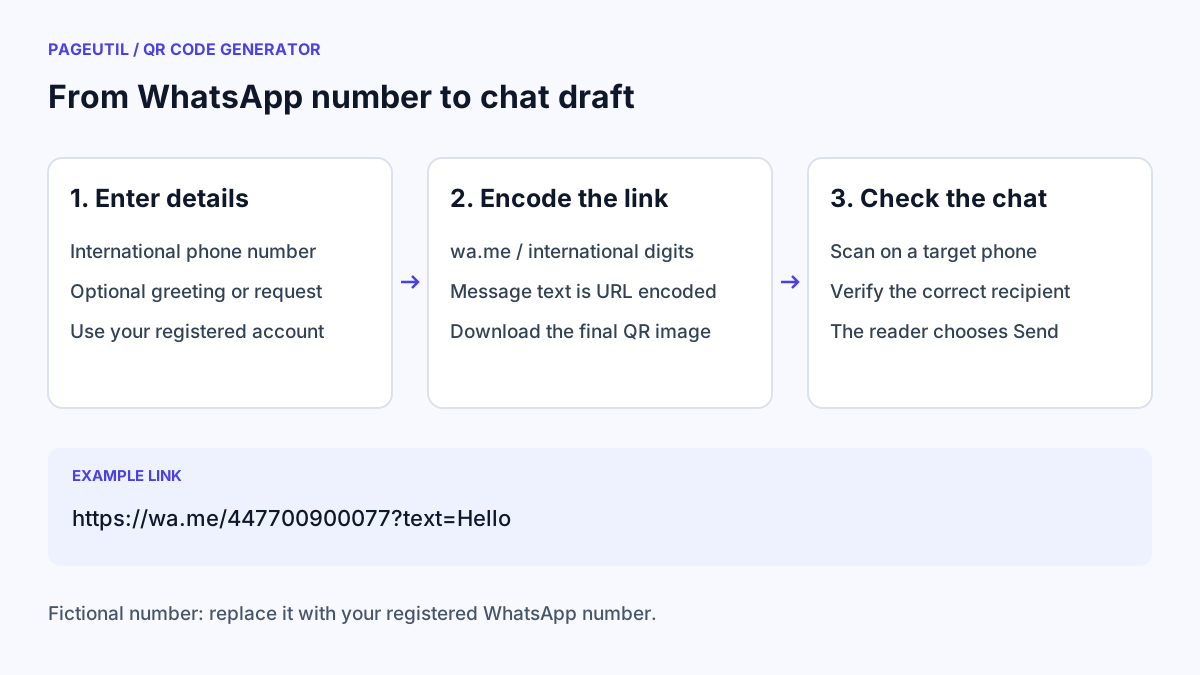
Prepare the WhatsApp number
Use the number registered with the WhatsApp account you want customers to contact. Include the country code. For example, the fictional UK number +44 7700 900077 becomes 447700900077 in the encoded link. Replace this example with your own registered number.
Leave out the domestic trunk prefix when converting a local number to international form. Do not simply put a country code in front of a local number that still starts with that prefix. PageUtil removes spaces, parentheses, and hyphens, but it cannot verify that a number has a WhatsApp account.
Create the code and optional message
Open QR Code Generator and choose WhatsApp under “1. Choose your content”. Enter the number in “WhatsApp number with country code”. Add a short greeting or request in “Pre-filled message (optional)”, such as “Hello, I would like to ask about a booking.”
Write normal text in the message field. The generator encodes spaces and punctuation for the link; entering %20 yourself would encode the percent sign again. Open “Inspect encoded content” and check the number and message. A valid example has this structure:
Number: +44 7700 900077
Message: Hello & welcome

Encoded content:
https://wa.me/447700900077?text=Hello%20%26%20welcome
Label the action and download
Open “2. Customise your design” if you want a logo, colours, or a frame. A label such as “CHAT ON WHATSAPP” tells people what a scan will do. Keep the code dark against a light background and leave the quiet zone clear.
Choose Download SVG for scalable print artwork, or Download PNG for a digital image. JPEG is also available when a publishing system requires it. Follow How to Customise QR Code Logos, Colours and Frames for the design controls.
Check the actual chat before printing
Scan the downloaded image with QR Code Scanner to inspect its wa.me link. Then scan it with a phone and confirm the intended account opens with the expected message. Opening a chat does not send the message automatically; the user must choose Send.
If the wrong account opens, correct the number and download a new image. A static code does not update when you change the form later. If a desktop browser asks for sign-in or offers to open an app, test on the phones your customers will use as well.
Stop when
The final downloaded file opens the correct WhatsApp account, the draft is readable, and the final printed sample scans with its logo and frame in place. Keep the original settings so you can reproduce the design.
References
Use the linked specifications and product documentation to check behavior in your own environment.
Continue troubleshooting
- How to Create Email, SMS and Phone QR Codes
- How to Customise QR Code Logos, Colours and Frames
- How to Choose QR Code SVG, PNG or JPEG
- How to Create Calendar Event and Location QR Codes
- How to Create QR Codes for PDFs, Videos and Pages
- QR Code Print Size and Scanning Distance Guide
- How to Create Restaurant Menu QR Codes
- How to Create Guest WiFi QR Codes
- How to Create vCard QR Codes for Business Cards
- How to Track QR Code Campaigns with UTM and GA4
- How to Put QR Codes on Product Packaging and Manuals
- How to Create a Google Review QR Code for Local Business
- Wedding Invitation and Event RSVP QR Codes
- How to Troubleshoot Printed QR Codes Not Scanning
- Static vs Dynamic QR Codes for Business Printing
- Best Free QR Code Generators
- How to make a QR code for a URL
Related tools
Frequently asked questions
Does scanning send the WhatsApp message automatically?
No. The link opens a chat with an optional message draft. The person scanning decides whether to send the message.
Can I change the number after printing?
The number is part of the static code. Changing the form creates a different code, so replace the old downloaded and printed image.
Does PageUtil store the WhatsApp number?
Generation happens locally in your browser. The number and message are not uploaded by the generator, but anyone who scans the finished code can read them.