Which tool fits your CSV problem?
Choose CSV Fixer when a downloaded file opens in one column, names contain garbled characters, records have inconsistent widths, or Excel changes tracking numbers. The repair workflow accepts CSV and TSV files up to 10 MB. You can also paste text, although changing the decoding requires the original file bytes.
Choose Easy Data Transform for a recurring process that combines sources, applies multiple transformations and produces repeatable outputs. Its desktop application runs on Windows and Mac. The vendor documents saved templates, joins, deduplication and batch processing. Both products process data locally in their documented workflows.
For example, preparing one customer export for Excel fits PageUtil. Combining a monthly customer table with an orders table and repeating the same transformations fits Easy Data Transform. Decide from the required input, operations and output before comparing prices.
PageUtil CSV Fixer vs Easy Data Transform
This comparison was checked on 17 November 2026 against the PageUtil implementation and Easy Data Transform’s published product and purchase pages. Competitor capabilities below come from vendor documentation. No comparative speed benchmark was performed.
| Requirement | PageUtil CSV Fixer | Easy Data Transform |
|---|---|---|
| Getting started | Open the browser tool, choose a file or paste text | Install the Windows or Mac application |
| Input | CSV and TSV, up to 10 MB in the repair workflow | Includes CSV, TSV, Excel, JSON, XML and vCard |
| Primary workflow | Inspect encoding and row structure, review repairs, export | Build reusable sequences of transformations |
| Excel identifiers | Select protected text columns for XLSX export | Evaluate the required output using its conversion settings |
| Repeated multi-file work | Interactive repair of the supplied input | Saved templates and batch processing |
| Combining and deduplicating data | Use a separate workflow for joins or deduplication | Join and Dedupe transforms are documented |
| Price | Free CSV repair and supported downloads | Core $99, Advanced $198, plus tax, one-time v2 licence |
How do you preserve leading zeros and long IDs?
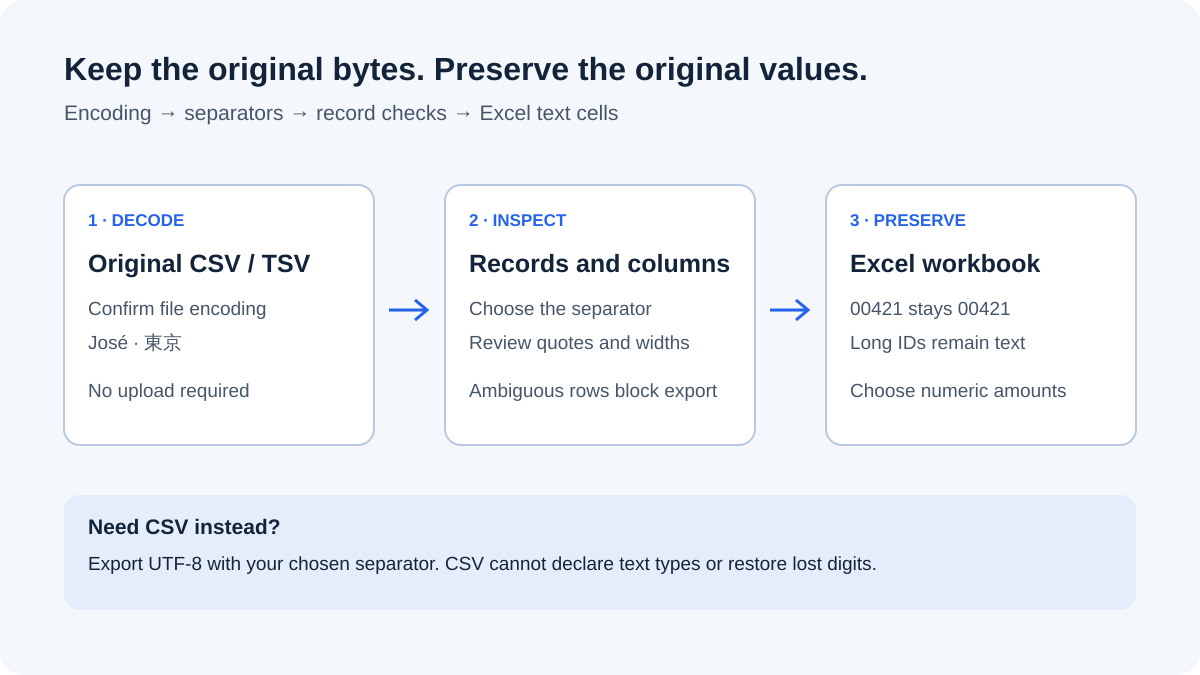
Export identifiers as text cells in XLSX. CSV contains field text without a column type declaration, so a spreadsheet can reinterpret a customer ID as a number when opening the file. Quoting a field in CSV does not prevent that conversion.
Copy this synthetic semicolon-separated example into CSV Fixer. The intended output contains two data records and four columns. Customer 00421 must keep its initial zeros, and the tracking value must keep all twenty digits. The amount uses a decimal comma.
customer_id;name;tracking_number;amount
00421;José;12345678901234567890;1200,50
00422;Zoë;98765432109876543210;49,95
How do you clean the example with PageUtil?
Open Inspect and repair CSV, paste the example and choose Semicolon as the input separator. Keep First record contains column headings selected, then click Analyze CSV. Confirm that each record has four fields. Pasting this example tests separators and export types. To investigate an encoding problem, choose the original file instead.
Review the recommended protected columns and keep customer_id and tracking_number as text. Choose Comma as the Excel decimal separator for these amounts. Check the preview before selecting Download Excel (.xlsx). The intended amount cells are numeric 1200.50 and 49.95, while the identifiers retain their exact characters.
Open the downloaded workbook and compare the two customer IDs, both tracking numbers and the amounts with the source. For a file with more rows, check the record count and any control total supplied by the source system. Keep the original file until the destination accepts the reviewed output.
If the receiving application requires CSV, select its required output separator and use Download clean CSV. Import identifier columns as text in the destination. The XLSX protection applies to the workbook export. A later CSV import makes its own type decisions.
The detailed repair guide covers encoding selection, malformed records and output review. How to Fix CSV Encoding, Columns and Leading Zeros in Excel
What can CSV repair recover?
Encoding repair works when the original bytes or a reversible character sequence remain available. If a file displays a garbled accented name, try the appropriate file encoding and inspect several known values. CSV Fixer also suggests reversals of supported saved mojibake sequences. Approve or reject each suggestion using the original source as evidence.
Row repair needs the intended column structure. A short row may represent missing trailing fields, while an unquoted comma can split an address into extra fields. Explicit padding or exclusion changes the data, so review those choices. Malformed quotes require correcting the source. Unresolved records block the repair workflow’s downloads.
Already-rounded digits and deleted zeros need an authoritative source. If an earlier spreadsheet save changed a twenty-digit identifier, exporting that changed value to XLSX preserves the changed value. Return to the original system export to recover the identifier.
For formula-like CSV values, the optional formula guard prefixes an apostrophe and changes the field. Check whether the destination expects that prefix. Review both the selected output format and the before-and-after values before downloading.
Is the free alternative enough for regular work?
PageUtil is a practical choice when each job is a small, inspectable repair and you want to start in a browser. For recurring transformations across multiple files, evaluate the saved workflow and batch features in Easy Data Transform. A repeated monthly task can justify the desktop setup even when each individual file is small.
At the checked date, Easy Data Transform lists Core at US$99 and Advanced at US$198, plus tax. Its v2 licence is a one-time purchase for one named user on up to three PC or Mac computers. The purchase page lists batch and command-line processing in both editions. Review current terms before purchasing.
What should you check before importing the cleaned file?
Confirm the destination’s column names, date format, required fields and identifier rules. A structurally consistent CSV can still contain an unknown customer ID or an invalid transaction date. Use a small sample import and reconcile the accepted and rejected records before submitting the full file.
For spreadsheet review, check the XLSX text columns and numeric amounts. For an application import, keep its exact CSV contract. Preserve the source export, the reviewed output and the decisions made for excluded or padded records so another person can reproduce the review.
Continue troubleshooting
- PageUtil vs AdminSheet Pro for Google Workspace User Updates
- PageUtil vs Excel Locale Settings for Formula Separators
- PageUtil vs Excel for Teams Attendance Report Merging
- PageUtil vs Power Platform CLI for Deployment Settings Checks
- PageUtil vs Moodle Grade Import Preview
- PageUtil vs Asana CSV Import for Task Hierarchy Checks
- PageUtil vs Azure Test Plans CSV Import Checks
- PageUtil vs Power BI Desktop for Theme JSON Validation
- PageUtil vs Intune for Windows Autopilot CSV Checks
- PageUtil vs Jira CSV Import for Parent and Hierarchy Checks
- PageUtil vs Teams Shifts for Excel Schedule Import Checks
- PageUtil vs Calendar Apps for ICS Timezone Debugging
- PageUtil vs Salesforce Data Loader for CSV Import Preflight
Related tools
Frequently asked questions
Is there a free alternative to Easy Data Transform?
PageUtil CSV Fixer is free for browser-based CSV and TSV repair, including encoding checks, reviewed row repairs and Excel export with protected text columns. Choose it for a focused file repair. Easy Data Transform provides a broader desktop workflow for saved transformations, joins and repeated multi-file processing.
Is there a maximum size for a CSV file?
A CSV format does not define one universal file-size limit. Each application imposes practical limits. PageUtil’s CSV repair workflow accepts files up to 10 MB. For a larger file, choose software suited to the required size and transformations, and verify that the output retains every expected record.
How can I open a CSV file for free?
Open CSV Fixer and choose the file or paste its text to inspect records in your browser. Use the original file when diagnosing encoding. You can also view CSV source in a text editor. Before using a spreadsheet, decide which columns contain identifiers that must be imported as text.
How do I stop Excel removing leading zeros from CSV?
Import the identifier columns explicitly as text, or export an XLSX workbook with those columns protected as text. CSV quoting alone does not declare a text column. If zeros or digits were already lost when an earlier file was saved, retrieve the original export before converting it.
Can I upload an Excel workbook to CSV Fixer?
The CSV repair workflow accepts CSV and TSV input. Export the relevant worksheet as CSV or TSV, or paste the source text. Check identifiers in the workbook first because a CSV export cannot restore digits that Excel has already rounded. The tool can produce a new XLSX workbook after review.