When should you choose PageUtil or Teams Shifts?
Microsoft documents importing a schedule from an Excel template. Start with the current template for the intended team. Formula cells, regional dates and overnight shifts can introduce ambiguity when a generic staffing spreadsheet is adapted to that format.
| Requirement | PageUtil | Teams Shifts |
|---|---|---|
| Template review | Supported workbook and schedule checks | Current team-specific template |
| Corrections | Explicit reviewed transformations | Actual roster import |
| Verification | Inspect candidate dates and durations | Inspect team schedule and import history |
Is PageUtil free, and what else do you need?
PageUtil Microsoft Teams Shifts Excel Validator is free to use without creating a PageUtil account. This covers the tool’s supported workflow and outputs; its technical limits still apply.
Teams Shifts access and scheduling permissions remain separate. Include confirmation of the current workbook template and the actual roster before importing a prepared schedule.
Compare the complete task, including preparation, review and destination access. Consult the linked provider documentation for current terms; no unverified competitor price is assumed here.
About PageUtil and its free tools
A worked example to test the choice
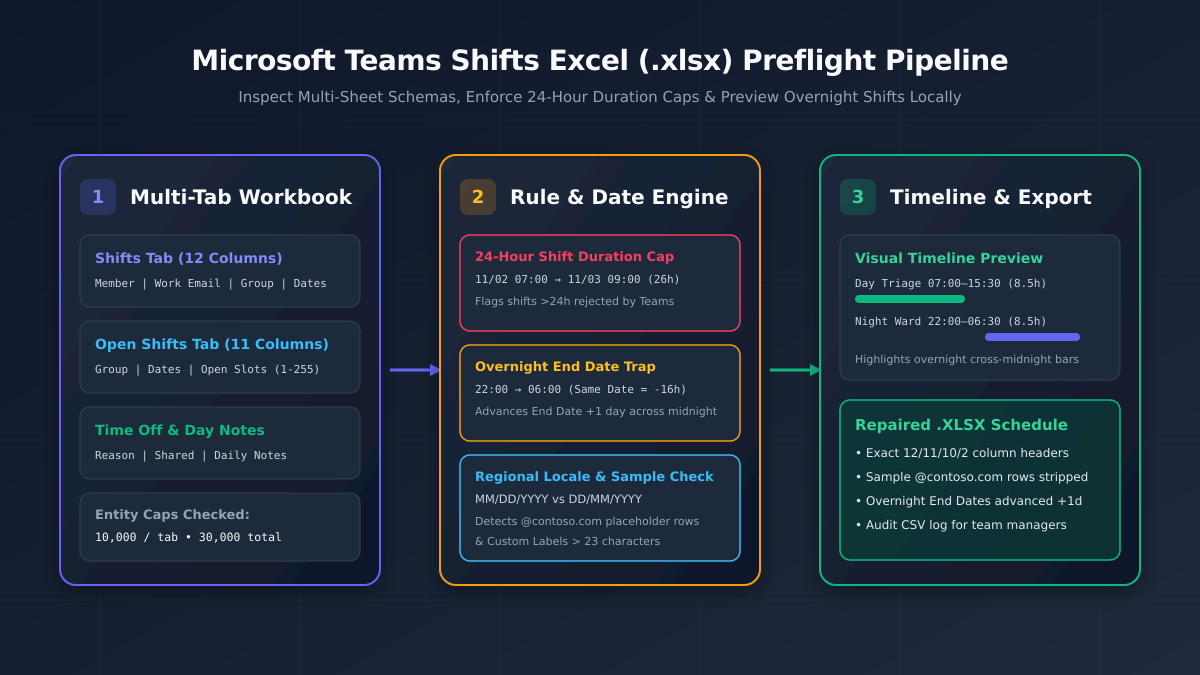
A shift starts at 22:00 and ends at 06:00 with the same date entered for both. Confirm with the schedule owner whether the end belongs to the following day. An overnight-looking value requires confirmation of the intended end date.
How do you run the PageUtil workflow?
Open Microsoft Teams Shifts Excel Validator.
Load the team template or supported schedule data and choose the source date order. Review required fields, durations and timeline findings. Approve only intended sample removal, date changes or truncation. Inspect the revalidated candidate workbook and import it through Shifts, retaining the actual error report.
For the detailed procedure and interpretation, read How to Fix Microsoft Teams Shifts Excel Import Errors.
What are the practical limits?
The checker cannot confirm live team membership or whether the same schedule was already imported. It does not calculate arbitrary workbook formulas. A local rest-rule check also depends on the user-supplied rule and cannot certify employment-law compliance.
What should you verify before using the result?
Review the resulting roster, open shifts and time-off entries in Teams. Check overnight and daylight-saving cases with the schedule owner and reconcile the import history before retrying failures.
Sources and comparison scope
Prepared on 18 November 2026 using the current PageUtil workflow and the linked official documentation, checked on 17–18 November 2026. The example is illustrative. Competitor descriptions are based on published documentation; this article does not report a comparative performance benchmark.
Continue troubleshooting
- How to Fix Microsoft Teams Shifts Excel Import Errors
- Easy Data Transform Alternative for CSV Cleanup
- PageUtil vs AdminSheet Pro for Google Workspace User Updates
- PageUtil vs Excel Locale Settings for Formula Separators
- PageUtil vs Excel for Teams Attendance Report Merging
- PageUtil vs Power Platform CLI for Deployment Settings Checks
- PageUtil vs Moodle Grade Import Preview
- PageUtil vs Asana CSV Import for Task Hierarchy Checks
- PageUtil vs Azure Test Plans CSV Import Checks
- PageUtil vs Power BI Desktop for Theme JSON Validation
- PageUtil vs Intune for Windows Autopilot CSV Checks
- PageUtil vs Jira CSV Import for Parent and Hierarchy Checks
- PageUtil vs Calendar Apps for ICS Timezone Debugging
- PageUtil vs Salesforce Data Loader for CSV Import Preflight
Related tools
Frequently asked questions
Can the checker confirm that every member belongs to the team?
No. Verify membership and permissions in the actual Teams environment.
Should an overnight end date be changed automatically?
Confirm the intended schedule first. A time pair alone cannot establish the correct calendar date.
Does the tool calculate spreadsheet formulas?
Use concrete supported values. Formula cells and unsupported workbook structures need correction through the source workflow.
Can I retry after a partial import without checking history?
Review successful and failed records first so the next upload does not duplicate accepted schedule entries.
Is the PageUtil tool free to use?
Yes. PageUtil Microsoft Teams Shifts Excel Validator is free to use without a PageUtil account. Teams Shifts access and scheduling permissions remain separate. Include confirmation of the current workbook template and the actual roster before importing a prepared schedule.