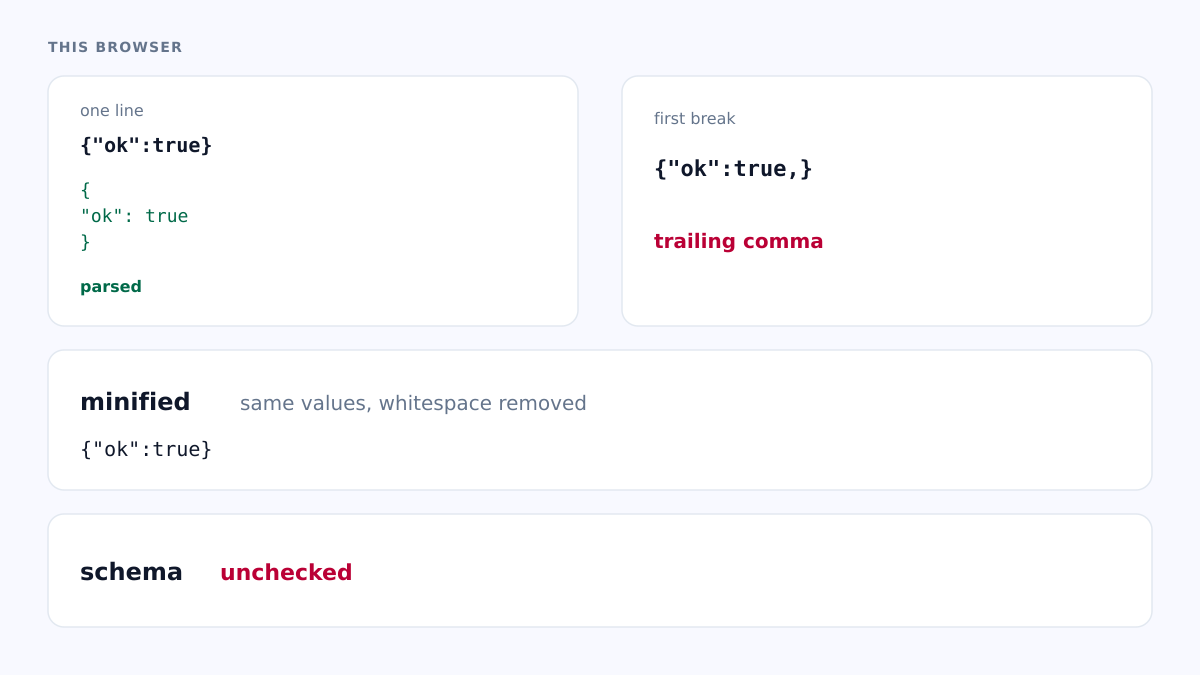
Fix the first syntax error with a minimal sample
Paste the synthetic invalid object below into the formatter. JSON does not permit a trailing comma after the final member. Remove that comma and parse again. A parser often reports where it first became unable to continue; the true mistake can be just before that position.
Single-quoted property names and JavaScript comments also fail JSON grammar. Error text varies by browser, so use the line or position and nearby characters rather than searching only for one exact message.
Invalid JSON:
{"count":3,}

Corrected syntax:
{"count":3}
Compare syntax with the expected contract
Both payloads in the table parse correctly, but only one matches a contract requiring an integer count and an email string. A schema validator can report missing properties, types, bounds and disallowed extras. PageUtil does not run JSON Schema validation.
Even a schema-valid email string does not prove a mailbox exists, and a positive count may still exceed the current stock. Those are separate semantic or business checks. Name each validation layer precisely in error reports.
| Input / rule | Syntax result | Contract result |
|---|---|---|
| {"count":3,"email":"reader@example.com"} | Valid JSON | Matches the example field types |
| {"count":"3"} | Valid JSON | Wrong count type; missing email |
| {"count":3,} | Invalid JSON | Schema evaluation cannot begin |
State the schema and validate it separately
This small JSON Schema example uses the 2020-12 dialect. Save it with your API tests and run a validator supporting that dialect. It describes structure, not real mailbox verification or permission to place an order.
If the API still rejects a schema-valid payload, inspect its documented constraints, method, authentication, status and response body. A response beginning with < may be HTML rather than a JSON problem.
{
  "$schema":"https://json-schema.org/draft/2020-12/schema",
  "type":"object",
  "required":["count","email"],
  "properties":{
    "count":{"type":"integer","minimum":1},
    "email":{"type":"string"}
  },
  "additionalProperties":false
}
Inspect trees, compare diffs, and convert schemas
Within JSON Formatter, you can switch between the Formatter, Tree Viewer, JSON Diff, and Converters tabs without your data leaving the browser. The Tree tab provides collapsible inspection of deeply nested object hierarchies, while the Diff tab compares two payloads structurally regardless of key order.
You can also convert valid JSON directly into YAML, CSV, XML, or TypeScript interfaces. When large numeric identifiers or strict hash signatures are involved, keep an untouched source copy to preserve raw formatting.
References
Use the linked specifications and product documentation to check behavior in your own environment.
Continue troubleshooting
- JSON Unexpected token <: why your API returns HTML
- Why large JSON numbers change in JavaScript
- How to minify JSON
- How to Detect and Recover Lost Shopify Theme Customisations After an Update
- How to Fix Power Platform Deployment Settings and Connection Reference Errors
- How to Fix Power BI Theme JSON Import Errors
- How to Find and Fix JSON Syntax Errors
- How to Compare Two JSON Files with Semantic Diff
- How to Generate TypeScript Interfaces from JSON
- How to Convert Nested JSON to Tabular CSV
- How to Convert Between JSON and YAML
- JWT exp, nbf and iat explained with timestamp examples
- Base64 vs Base64URL: why JWT decoding fails
Related tools
Frequently asked questions
Does formatted JSON pass JSON Schema validation?
Not necessarily. Formatting confirms parsing, while schema validation checks a separate contract.
Can JSON contain trailing commas or comments?
No. Standard JSON grammar does not allow either feature.
Does PageUtil upload my pasted JSON?
No. JSON Formatter processes the pasted document in your browser.