When should you choose PageUtil or LabelResizer?
LabelResizer documents taking shipping PDFs and producing resized labels, with wider label customization options. PageUtil’s task starts after the carrier or marketplace creates the shipping label. Prepare a sample from the carrier you actually use, because an A4 page with one label and a page with several labels require different crop decisions.
| Requirement | PageUtil | LabelResizer |
|---|---|---|
| Input | Existing label PDF | Existing shipping-label PDF |
| Workflow | Local page and crop review | Resizing and customization workflow |
| Verification | Physical dimensions and test print | Physical dimensions and test print |
Is PageUtil free, and what else do you need?
PageUtil Shipping Label Resizer is free to use without creating a PageUtil account. This covers the tool’s supported workflow and outputs; its technical limits still apply.
For LabelResizer, check the supported carrier layout, batch limits and output dimensions. Include the printer, label stock and a physical test print when evaluating the complete workflow.
Compare the complete task, including preparation, review and destination access. Consult the linked provider documentation for current terms; no unverified competitor price is assumed here.
About PageUtil and its free tools
A worked example to test the choice
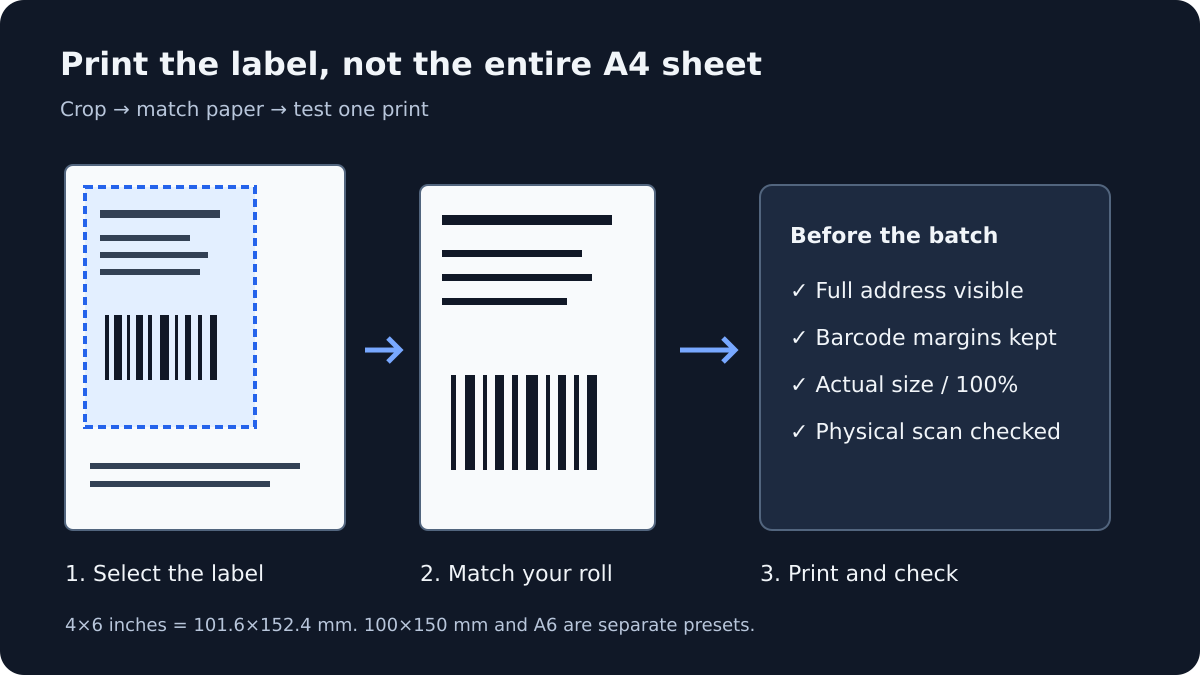
An A4 PDF places one purchased label in the upper half of the page. Scaling the entire sheet down to a thermal label would shrink the barcode and leave unnecessary whitespace. Select the intended label region, check the crop preview and produce the required physical output size. Keep every service mark and routing field inside the crop.
How do you run the PageUtil workflow?
Open Shipping Label Resizer.
Load the original PDF, select its label page and inspect the crop area before exporting. Choose the physical dimensions required by the printer stock. Open the output in a PDF viewer and print at actual size. Compare the printed barcode, address and page boundaries with the source; confirm the printer driver also uses the intended paper size.
For the detailed procedure and interpretation, read How to Print A4 Shipping Labels on a 4×6 Thermal Printer.
What are the practical limits?
A preview cannot verify printer scaling, media alignment or the carrier’s acceptance rules. Resizing a purchased label changes its presentation. It does not purchase postage or change the shipment service. If the source barcode is damaged or unreadable, retrieve a fresh original from the carrier.
What should you verify before using the result?
Print one test label before the batch. Inspect barcode quiet areas and any rotated text, then check the label against the matching order. Save the original purchased label and the resized output so a packing operator can resolve a mismatch.
Sources and comparison scope
Prepared on 18 November 2026 using the current PageUtil workflow and the linked official documentation, checked on 17–18 November 2026. The example is illustrative. Competitor descriptions are based on published documentation; this article does not report a comparative performance benchmark.
Continue troubleshooting
- How to Print A4 Shipping Labels on a 4×6 Thermal Printer
- iLovePDF Alternative for Local PDF Comparison
- QRCode Monkey Alternative for Static QR Codes
- QRStuff Alternative for Scanning Saved QR Images
- TEC IT Alternative for Generating Barcodes
- PageUtil vs Copy and Paste for Word Tables in Excel
- PageUtil vs Lexicon DJ for Rekordbox Missing Files
- PageUtil vs Lumi for H5P Package Checks
Related tools
Frequently asked questions
Does resizing a label buy postage?
No. Begin with a label already issued by your carrier or shipping platform. Resizing only prepares its presentation for printing.
Why is my barcode too small after printing?
The full original page may have been scaled down, or the printer applied fit-to-page scaling. Check the crop, output dimensions and actual-size setting.
Can I crop out routing information?
Keep all required carrier content, including service marks and routing text. Compare the crop with the original before printing.
Can a clear preview guarantee a scannable printed label?
No. Printer resolution, scaling, media and damage can affect the physical label. Test a real print before processing the batch.
Is the PageUtil tool free to use?
Yes. PageUtil Shipping Label Resizer is free to use without a PageUtil account. For LabelResizer, check the supported carrier layout, batch limits and output dimensions. Include the printer, label stock and a physical test print when evaluating the complete workflow.