When should you choose PageUtil or iLovePDF?
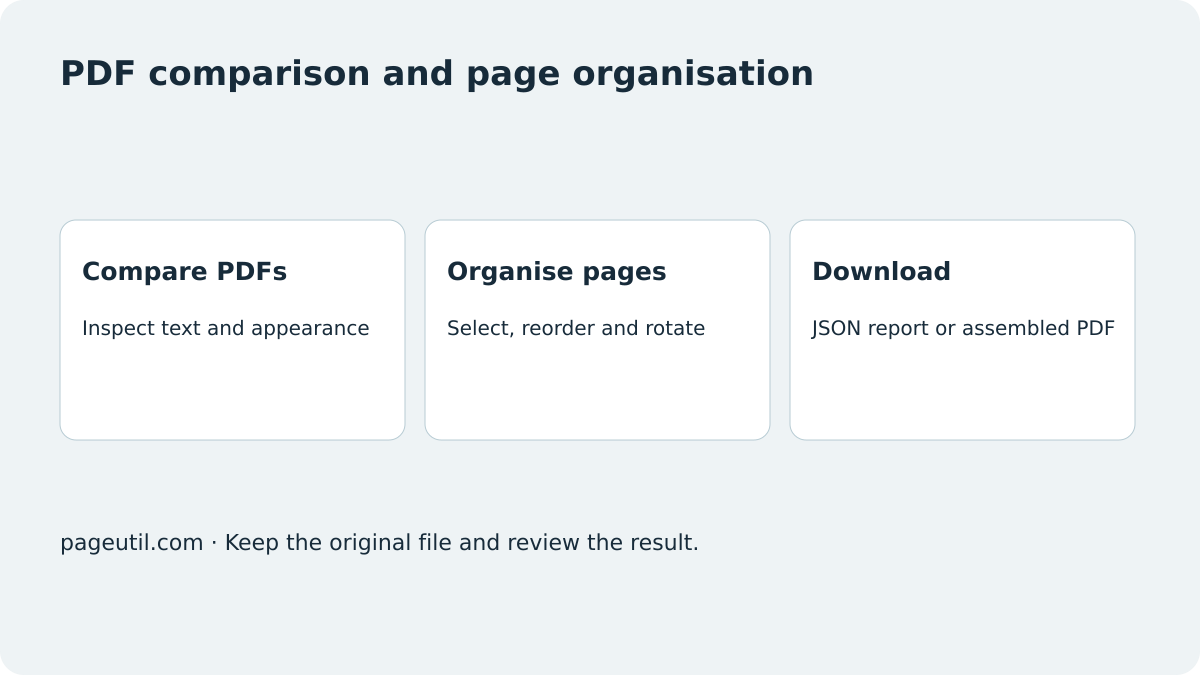
A comparison report and a revised document serve different purposes. PageUtil’s comparison identifies changes and preserves the findings in JSON. Its separate assembly workflow creates a PDF from chosen original pages. Start by deciding whether the recipient needs evidence of changes, a reordered document, or both. iLovePDF’s Compare PDF page describes comparing documents, while its navigation provides separate merge, split and conversion operations.
| Requirement | PageUtil | iLovePDF |
|---|---|---|
| Review two revisions | Text findings, rendered page views and JSON report | Dedicated Compare PDF workflow |
| Build a combined document | Separate original-page assembly task | Separate Merge PDF and Split PDF tools |
| Selection criterion | Local inspection and supported outputs | The required PDF service and its export options |
Is PageUtil free, and what else do you need?
PageUtil PDF Tools (Merge, Split, Rotate) is free to use without creating a PageUtil account. This covers the tool’s supported workflow and outputs; its technical limits still apply.
For iLovePDF, check the current limits for the specific PDF operation, file size and export you need. Include any separate OCR requirement when assessing a scanned-document workflow.
Compare the complete task, including preparation, review and destination access. Consult the linked provider documentation for current terms; no unverified competitor price is assumed here.
About PageUtil and its free tools
A worked example to test the choice
Suppose a supplier sends a revised three-page quotation. The new version changes the total on page two and moves the terms page. Compare Original PDF with Revised PDF, inspect the automatic page pairings, then read both the extracted text and rendered pages. A moved page should be reviewed with its original page number so a change of position does not distract from a changed price.
How do you run the PageUtil workflow?
Open PDF Tools (Merge, Split, Rotate).
In PageUtil, choose Compare two PDFs and provide both files. Each comparison input supports up to 200 pages and 50 MB. Use Side by side, Overlay or Difference highlight to inspect a suspicious pair. Review text differences, page size, rotation and supported form or annotation findings. Export the comparison JSON only after checking uncertain page matches. To create a deliverable PDF, switch to the assembly task, load its files, select and order the pages, then download the assembled PDF.
For the detailed procedure and interpretation, read How to Merge, Split, and Reorder PDF Pages Locally.
What are the practical limits?
A scanned page may contain no extractable text. Visual review can expose changes in the rendered image, but the comparison does not supply OCR. Rendering is bounded, so tiny visual details need checking in a full PDF viewer. Manual pair selection helps inspection without rewriting automatic pairings in the JSON report. Treat that report as sensitive because it can include extracted document text.
What should you verify before using the result?
For a quotation, verify the quoted amount, currency, validity date and signature area in the final viewer. For assembly, count the downloaded pages and check orientation. Keep the original and revised sources with the comparison report. A visually covered area still needs a dedicated redaction workflow if the goal is to remove recoverable content.
Sources and comparison scope
Prepared on 18 November 2026 using the current PageUtil workflow and the linked official documentation, checked on 17–18 November 2026. The example is illustrative. Competitor descriptions are based on published documentation; this article does not report a comparative performance benchmark.
Continue troubleshooting
- How to Merge, Split, and Reorder PDF Pages Locally
- QRCode Monkey Alternative for Static QR Codes
- QRStuff Alternative for Scanning Saved QR Images
- TEC IT Alternative for Generating Barcodes
- LabelResizer Alternative for Shipping Label PDFs
- PageUtil vs Copy and Paste for Word Tables in Excel
- PageUtil vs Lexicon DJ for Rekordbox Missing Files
- PageUtil vs Lumi for H5P Package Checks
Related tools
Frequently asked questions
Can PageUtil compare scanned PDFs?
You can inspect rendered pages, but an image-only PDF may have no extractable text. Use visual review and an OCR workflow when searchable text is required.
Does PageUtil export an annotated comparison PDF?
Its comparison export is JSON. Use the separate assembly task to create a new PDF from selected original pages.
Will a moved page look like a text edit?
Automatic page matching can identify reordered identical renders. Review uncertain pairings manually, especially when the moved page also contains changes.
Can I merge PDFs after comparing them?
Yes. Switch to the assembly workflow, load its inputs, select the required pages and download the assembled PDF. Check the finished file in a viewer.
Is the PageUtil tool free to use?
Yes. PageUtil PDF Tools (Merge, Split, Rotate) is free to use without a PageUtil account. For iLovePDF, check the current limits for the specific PDF operation, file size and export you need. Include any separate OCR requirement when assessing a scanned-document workflow.