When should you choose PageUtil or Word and Excel copy and paste?
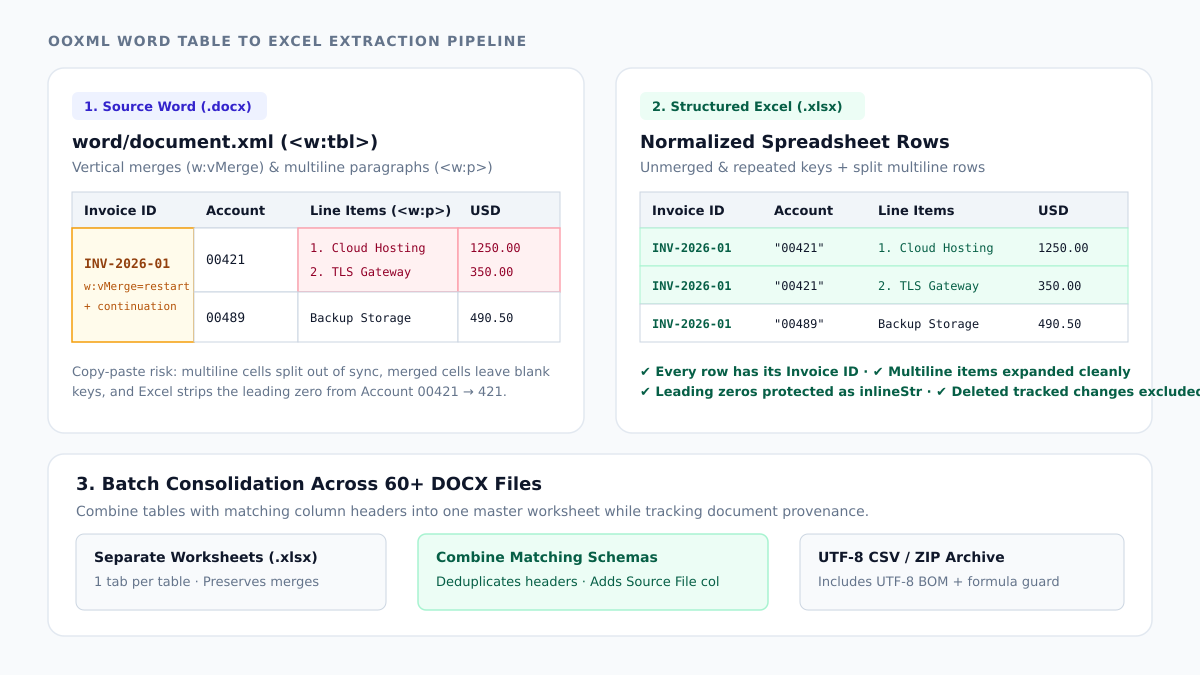
Manual copying gives you direct control over the selected table, but line breaks and merged cells can make the pasted grid difficult to interpret. PageUtil’s document workflow exposes extracted tables for review. The goal is a useful cell grid, so decide how headings and merged regions should map before exporting.
| Requirement | PageUtil | Word and Excel copy and paste |
|---|---|---|
| Small selected table | Extract through the document workflow | Copy directly from the open Word table |
| Multiple tables | Review extracted table selections | Repeat manual selection and pasting |
| Quality check | Compare grid and important cell types | Compare grid and important cell types |
Is PageUtil free, and what else do you need?
PageUtil Word Tables to Excel is free to use without creating a PageUtil account. This covers the tool’s supported workflow and outputs; its technical limits still apply.
Native copy and paste depends on your access to Word and Excel. Compare that manual effort with extraction from supplied DOCX files, including the time needed to verify merged cells and identifiers.
Compare the complete task, including preparation, review and destination access. Consult the linked provider documentation for current terms; no unverified competitor price is assumed here.
About PageUtil and its free tools
A worked example to test the choice
A supplier table has a merged heading across three columns and an item code 00421 beneath it. After extraction, verify the heading’s placement and confirm the item code remains text. A workbook that looks tidy can still contain shifted prices or lost identifier zeros.
How do you run the PageUtil workflow?
Open Word Tables to Excel.
Preserve the DOCX and select the required tables in Word Tables to Excel. Review rows, columns, merged regions and multiline cells. Export the reviewed workbook, open it in Excel and compare representative heading, identifier and amount cells with the source. For a small manual copy, perform the same comparison after pasting.
For the detailed procedure and interpretation, read How to extract Word tables to Excel.
What are the practical limits?
A document table can contain visual layout choices that do not map naturally to a rectangular dataset. Extraction cannot infer a business schema from appearance alone. Scanned table images require a separate recognition workflow.
What should you verify before using the result?
Check every selected table’s record count and important totals before using the workbook for reporting. Retain the source document and note any intentional restructuring of merged or repeated headings.
Sources and comparison scope
Prepared on 18 November 2026 using the current PageUtil workflow and the linked official documentation, checked on 17–18 November 2026. The example is illustrative. Competitor descriptions are based on published documentation; this article does not report a comparative performance benchmark.
Continue troubleshooting
- How to extract Word tables to Excel
- iLovePDF Alternative for Local PDF Comparison
- QRCode Monkey Alternative for Static QR Codes
- QRStuff Alternative for Scanning Saved QR Images
- TEC IT Alternative for Generating Barcodes
- LabelResizer Alternative for Shipping Label PDFs
- PageUtil vs Lexicon DJ for Rekordbox Missing Files
- PageUtil vs Lumi for H5P Package Checks
Related tools
Frequently asked questions
Can a table image be extracted as native cells?
An image requires recognition first. A native DOCX table contains structure that a document extractor can inspect.
Will merged Word cells map perfectly to Excel?
Review the resulting grid. Layout-oriented merges can need deliberate restructuring for analysis.
Why did an item code lose leading zeros?
The spreadsheet may have interpreted it as a number. Preserve identifiers as text and compare with the original source.
When is copying and pasting enough?
It can suit a small simple table when you can manually verify every important row and column after pasting.
Is the PageUtil tool free to use?
Yes. PageUtil Word Tables to Excel is free to use without a PageUtil account. Native copy and paste depends on your access to Word and Excel. Compare that manual effort with extraction from supplied DOCX files, including the time needed to verify merged cells and identifiers.