Choose one task at a time
Use Compare two PDFs or Merge, split or rotate pages at the top of the tool. Only the selected workflow is shown. Switching tasks keeps your inputs and results in this page; clearing or leaving the page removes that working state. Direct links ending in #pdf-compare or #pdf-assemble open the matching task.
Choose comparison or page organisation
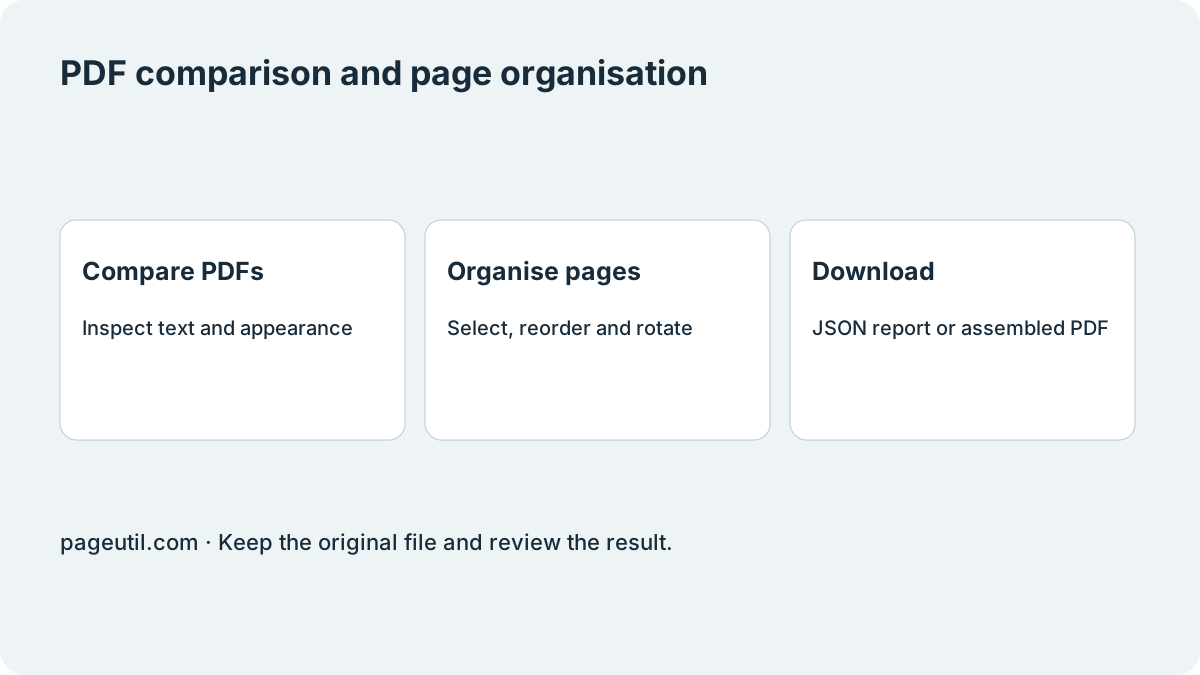
Choose Compare two PDFs to inspect changes between an original and revision. Choose Merge, split or rotate pages to build a new PDF from selected original pages. Comparing does not edit the originals or create an annotated comparison PDF.
| Task | Input | Output |
|---|---|---|
| Compare | One original and one revised PDF | Page findings, visual previews and downloadable comparison JSON |
| Merge or extract | One or more PDFs | A new PDF containing the selected pages |
| Reorder or rotate | Loaded pages in the assembly grid | A new PDF with the chosen sequence and rotations |
Compare text, visible images and page order
Choose Original PDF and Revised PDF, then click Compare PDFs. Each comparison input can contain up to 200 pages and be up to 50 MB. Open Text comparison options only if you want to change whitespace handling or skip the first and last extracted lines of each page.
Read the page-result buttons using the original and revised page numbers. Identical rendered pages can be matched across positions to detect reordering. Other matches use text similarity, so inspect uncertain pairs manually with the two page selectors. Image-only edits can appear as an inserted/removed pair rather than a confident automatic match.
Choose Side by side, Overlay (50% blend) or Difference highlight. Highlight sensitivity appears for Difference highlight; it changes the mask, not the page result. Read the text-difference panel and raw extracted text as well. Page size/rotation, supported annotations, form values and basic metadata are checked separately.
Download comparison JSON retains the automatic findings, selected text options, original page references, extracted text and annotation data. Manual selection lets you inspect another pair but does not rewrite automatic matches in the report. Treat the report as sensitive as its source documents.
Merge, split, rotate and reorder pages
Choose Merge, split or rotate pages and use its separate file picker or drop zone. Each page appears in a card with its source filename and page number. The comparison file pickers do not populate this assembly grid.
Use Move Left and Move Right to change the sequence. Rotate 90° Clockwise changes an individual page; Rotate All +90° changes the batch. Uncheck a page to exclude it from the download, or remove its card. Deselect All followed by selecting a few pages is useful for extraction.
Click Download Assembled PDF. The tool copies original PDF pages rather than replacing them with the preview thumbnails. Originals remain unchanged. Check the downloaded file for the expected sequence, orientation and readable content.
Understand what the checks cannot prove
Comparison renders pages at up to 900 pixels on the longest edge, so tiny visual changes can be missed. Scanned pages are compared visually without OCR. Extracted text order can differ from reading order, especially for columns. Skipping header/footer lines can hide meaningful text, although it never suppresses visual or annotation findings.
There is no digital-signature verification, semantic-equivalence test or complete embedded-object audit. The visual mask does not count changed image objects. A short text preview is not the complete report: large line changes are explicitly marked, and the original extracted texts remain available.
Assembly has no fixed file/page count cap, but device memory and document complexity limit practical capacity. Interactive forms, bookmarks and signatures are not guaranteed to survive assembly unchanged. Verify these in the receiving reader rather than relying on the thumbnail or a successful download.
Recover from input or processing problems
Decrypt password-protected files in an appropriate PDF reader before loading them. Split large comparisons into smaller documents if they exceed the comparison limits or become slow. Cancel stops an active comparison; changing files or text options invalidates its old report.
Loading the page and its scripts requires access to the site. File processing is local, but an entirely offline session is not guaranteed: required worker, font or rendering assets may not already be cached.
References
Use the linked specifications and product documentation to check behavior in your own environment.
Related tools
Frequently asked questions
Does comparison download a PDF with changes marked?
No. It provides visual inspection and a downloadable JSON report. Download Assembled PDF belongs to the separate page-organisation workflow.
Does comparison read text from scanned pages?
Not through OCR. Image-only pages are compared visually, and the result explicitly reports when no text is extractable.
Will assembly preserve interactive forms and digital signatures?
Do not assume that it will. Assembly creates a new PDF. Verify forms, bookmarks and signatures in the receiving reader; signature preservation is not guaranteed.
Do all PDF tasks have the same limits?
No. Comparison is bounded to 200 pages and 50 MB per file, with rendering and text budgets. Assembly has advisory workload warnings and depends on available device resources.