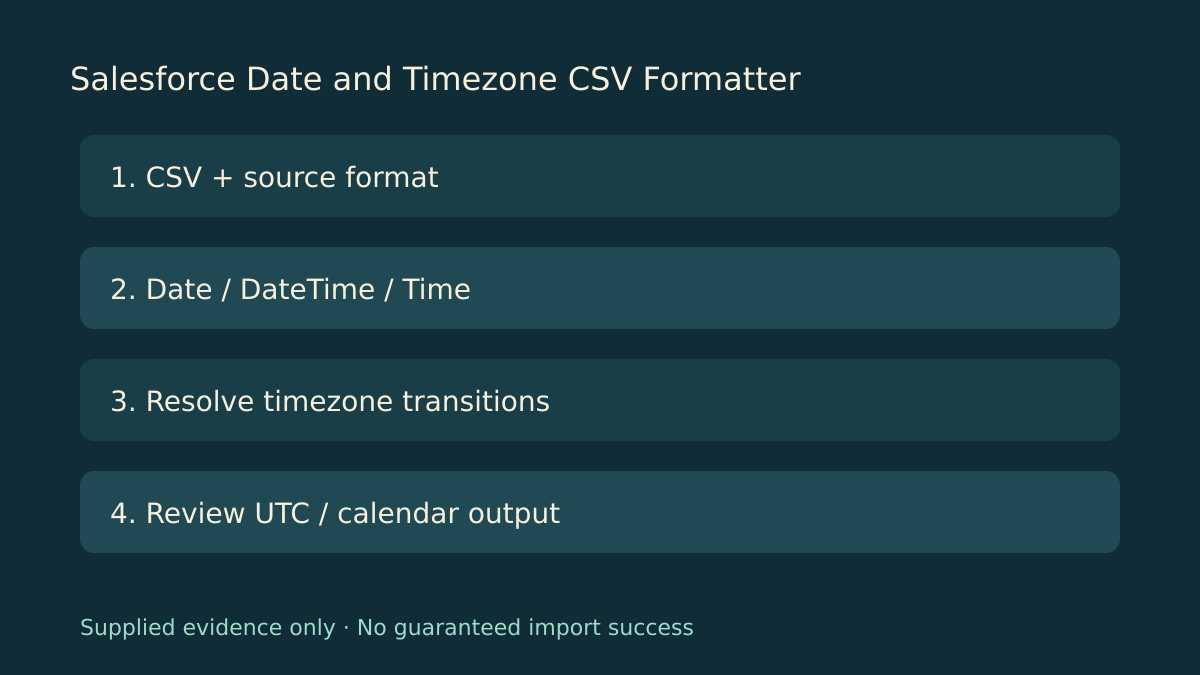
Choose Date, DateTime or Time before converting
A Salesforce Date is a calendar day. Format it as YYYY-MM-DD without shifting it through UTC. A DateTime is an instant; the formatter emits YYYY-MM-DDTHH:mm:ss.SSSZ in UTC. A Time field is a time of day, formatted HH:mm:ss.SSSZ here without applying a timezone shift. These meanings are different even when a spreadsheet shows similar text.
Choose ISO, DMY or MDY explicitly. For slash dates, DMY reads 03/04/2026 as 3 April; MDY reads it as March 4. The tool does not guess from other rows, your browser locale or the computer timezone. Mixed source conventions need separate runs. A Date column containing a time is blocked rather than silently discarding information.
The formatter supports seconds and up to three fractional digits. It rejects invalid calendar dates, hour 24, leap-second notation and higher precision rather than rounding. Supported calendar years are 1700 through 4000; that is a tool limit, not a statement of Salesforce’s entire supported range. Blank cells and #N/A remain unchanged for later importer-specific null review.
Use the source timezone, not the destination display preference
An explicit Z or numeric offset identifies an instant without a source IANA timezone. For a local DateTime without an offset, enter its original timezone, such as America/New_York or Asia/Bangkok. The destination user’s display timezone is not necessarily the timezone in which the source event occurred. Numeric offsets up to ±14:00 are supported; they are not inferred from an abbreviation such as CST.
IANA timezone rules come from the browser runtime. Historical rules and future legislative changes can differ across runtime versions. Keep the intended source zone and offsets with your migration evidence. For critical historical timestamps, verify a sample independently. An explicit offset takes precedence over the source-zone field.
Reproduce a normal time, spring gap and repeated autumn hour
Load the worked example and use Appointment__c, DateTime, ISO and America/New_York. The first local value, 2026-03-08 01:30:00, converts to 2026-03-08T06:30:00.000Z. At the spring transition, 02:30 does not exist locally; the tool blocks it. At the autumn transition, 2026-11-01 01:30:00 occurs twice; the tool blocks that ambiguity too.
The final value has -04:00 explicitly and converts to 2026-11-01T05:30:00.000Z. A confirmed -05:00 would instead produce 06:30Z. Neither is automatically the correct business instant for an ambiguous source. Obtain the intended offset from authoritative event data. The example yields two converted rows and two errors, with candidate export blocked.
Keep only the first and fourth source rows for a clean conversion exercise, then inspect the downloaded candidate in a text editor. The external keys 001 and 004 retain their leading zeros. Only the chosen column changes. These are fictional appointments tested locally; no Salesforce org test is implied.
Check imported instants independently of screen display
Use your actual client and target field type for an authorised sandbox sample. Query the stored values through an API and compare instants, then inspect the UI under a known user timezone. A different display hour can be correct when the stored UTC instant agrees. An apparent previous-day Date can reflect an inappropriate conversion path or importer timezone setting.
The spreadsheet-safe report includes before and after values and exact failure reasons. It is for review, not import. Candidate CSVs preserve formula-looking strings in all other columns and must not be treated as safe spreadsheet content. Do not open and resave identifiers in a spreadsheet that may strip zeros or reinterpret timestamps.
Download the worked evidence and expected results
All example records, custom fields and metadata are fictional. They follow documented CSV, REST describe or SDL shapes and have not been executed in a Salesforce org. No customer or production personal data is included.
Continue the import review
Use the Salesforce CSV Import Preflight and Reconciliation Checklist to decide which checks apply to your operation. Local passes do not replace integration-user access, current metadata and a representative sandbox test.
References
Use the linked specifications and product documentation to check behavior in your own environment.
Continue troubleshooting
- Salesforce CSV Import Preflight and Reconciliation Checklist
- How to Map Salesforce Parent Records by External ID
- How to Preview Salesforce Bulk Update Clears and Overwrites
- How to Validate Salesforce Picklist API Values and Record Types
- How to Check Salesforce CSV Fields and Data Loader SDL Mappings
- How to Analyse and Retry Failed Salesforce Bulk API 2.0 Records
Related tools
Frequently asked questions
Was this example tested in a Salesforce org?
No. The downloadable fictional examples exercise local checks and documented file shapes. A live-org result requires an authorised org and the actual importer.
Can a clean report guarantee import success?
No. Current destination records, permissions, validation rules and automation are not available to these local checks and can change the result.
Which file should I use for import?
Review the raw candidate and its importer settings. The spreadsheet-safe findings report changes formula-looking cells for review and must not be imported as source data.