When should you choose PageUtil or Google Contacts CSV import?
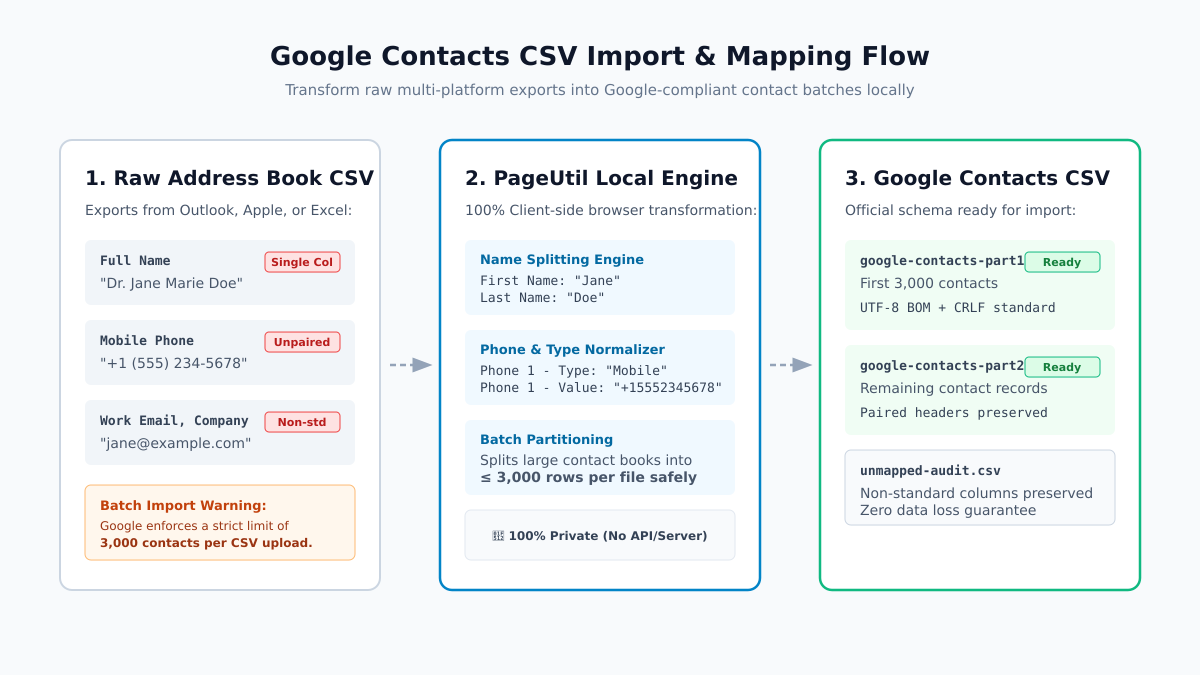
Google publishes an import template and field guidance. A CRM export may use a single Full Name field, custom phone labels or separate organization columns. Mapping needs to preserve meaning, especially when one person has more than one email address or phone number.
| Requirement | PageUtil | Google Contacts CSV import |
|---|---|---|
| Source headings | Explicit local field mapping | Supported import template |
| Account operation | Export candidate files | Import into the selected account |
| Verification | Review candidate field preservation | Inspect resulting contacts |
Is PageUtil free, and what else do you need?
PageUtil Google Contacts CSV Import Mapper is free to use without creating a PageUtil account. This covers the tool’s supported workflow and outputs; its technical limits still apply.
Google Contacts remains the destination for the import. Include the work of confirming its current field structure and inspecting a small imported sample before migrating the full contact set.
Compare the complete task, including preparation, review and destination access. Consult the linked provider documentation for current terms; no unverified competitor price is assumed here.
About PageUtil and its free tools
A worked example to test the choice
A source row contains a work email, a personal email and a company name. Mapping only the first email column creates an apparently successful import while losing the second address. Review the candidate headers and values against the destination’s supported field pattern.
How do you run the PageUtil workflow?
Open Google Contacts CSV Import Mapper.
Keep the original export and open Google Contacts CSV Import Mapper. Confirm the separator and heading row, map the source columns and inspect the preview. Export reviewed batches that fit the destination’s current requirements. Import a small sample into the intended account and inspect names, labels, organizations and multiple values.
For the detailed procedure and interpretation, read How to Format and Map a Google Contacts CSV Import.
What are the practical limits?
A mapper cannot infer whether two similar names are the same person or whether a phone label is correct. Local batching presets should be checked against current account and import limits. Spreadsheet formatting may already have changed phone numbers or identifiers before upload.
What should you verify before using the result?
Compare source and imported counts and inspect several complex records. Resolve mapping losses before the full import and keep the original export for later reconciliation.
Sources and comparison scope
Prepared on 18 November 2026 using the current PageUtil workflow and the linked official documentation, checked on 17–18 November 2026. The example is illustrative. Competitor descriptions are based on published documentation; this article does not report a comparative performance benchmark.
Continue troubleshooting
- How to Format and Map a Google Contacts CSV Import
- dmarcian XML to Human Alternative for DMARC Reports
- MxToolbox Alternative for Email Header Analysis
- PageUtil vs ZeroBounce for Email List Cleanup
- MxToolbox Alternative for Generating SPF Records
- dmarcian Alternative for Generating DMARC Records
- PageUtil vs MxToolbox for Email Health Checks
- PageUtil vs Google Contacts for Duplicate Contact Cleanup
Related tools
Frequently asked questions
Can I upload any CRM CSV directly to Google Contacts?
Check the supported headings and field format first. A successful file upload can still map or omit fields unexpectedly.
How do I preserve multiple email addresses?
Map each source value to the appropriate supported destination field and inspect a contact with several values after import.
Does a valid phone column prove the number is correct?
No. Preserve the source text and verify country codes, leading zeros and intended labels.
Why should I test a small import?
It reveals field mapping and preservation behavior in the actual account before those choices affect the entire list.
Is the PageUtil tool free to use?
Yes. PageUtil Google Contacts CSV Import Mapper is free to use without a PageUtil account. Google Contacts remains the destination for the import. Include the work of confirming its current field structure and inspecting a small imported sample before migrating the full contact set.