Prepare a CSV from your bank statement
Start with the bank’s own transaction download. Select the intended account and date range, then look for CSV export. Keep the original download and the statement used to check it. If the bank supplies an OFX, QBO or QFX file instead, use the existing-OFX workflow below when that file is within the supported subset.
For a spreadsheet source, keep one transaction per row with a date, description and amount, or separate debit and credit columns. Remove report titles, repeated headings and subtotal rows from a working copy. Save that sheet as CSV or TSV; an Excel workbook is not a CSV file.
If you only have a PDF, scanned statement or image, obtain a structured bank export where possible. Otherwise prepare and check the transaction rows separately before using this converter. It does not extract transactions from PDFs or perform OCR. Changing a PDF filename to .csv does not convert its contents.
Compare the date range, row count and money-in/money-out totals with the statement. Confirm whether the source uses positive or negative values for payments. Retain the statement’s actual closing balance and balance as-of date for the separate balance fields; net transaction movement is not the closing balance.
For direct CSV upload to QuickBooks Online, use QuickBooks CSV Validator and its destination-specific mapping. Intuit documents three-column and four-column CSV layouts; the OFX/QBO converter’s source mapping is a different workflow.
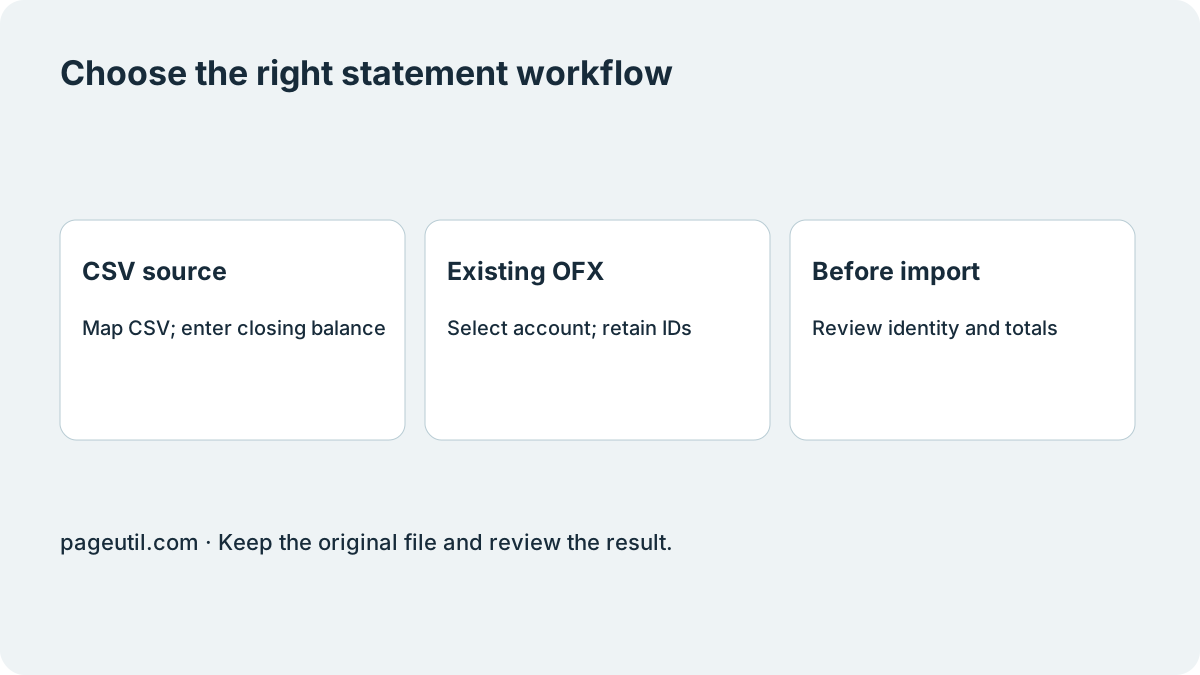
Choose the workflow that matches your source
At the top of the tool, choose Convert an existing OFX or Convert CSV or use the quick viewer. Only the selected workflow is shown; switching keeps your inputs and results in this page. In existing-OFX conversion, paste directly or expand Choose a file instead of pasting to upload a statement. Existing OFX input belongs in the first panel. A CSV or TSV belongs in the CSV form; changing a filename does not convert between these formats.
| Source | Workflow | Important boundary |
|---|---|---|
| Existing OFX, QBO or QFX statement | Inspect OFX accounts, then review one selected account | Supported bank/credit-card records only; unsupported structures block export. |
| Bank CSV or TSV | Convert CSV → OFX / QBO | Enter the actual closing balance and balance as-of date; CSV balance columns are not imported automatically. |
| A quick look at transaction rows | OFX / QBO Statement Viewer | A quick reader, not a multi-account reconciliation or closing-balance validator. |
Convert an existing OFX statement
Choose a file up to 10 MB or paste the statement, then click Inspect OFX accounts. Select the intended account from Statement account. Check the separate account, currency, transaction count, net movement, closing balance and balance-date cards. On a phone, expand a transaction to inspect its full source timestamp, transaction ID, payee and memo. The preview shows the first 20 transactions; export retains all supported transactions for that selected account.
Choose the output format. QBO requires the actual institution name (ORG), institution ID (FID) and Intuit branding ID (INTU.BID). Source values are prefilled when present. Obtain missing values from the institution rather than substituting another bank. Standard OFX output does not require these QBO-specific identity fields.
Tick the account-review confirmation, click Prepare reviewed statement and then Download statement. The existing-OFX workflow retains source FITIDs, full timestamp strings, amounts, currencies and ledger/available balances. It exports one account at a time and normalises the response envelope, omitting session credentials.
Corrections, investments, unknown tags, duplicate FITIDs within an account, malformed input and missing ledger balances block conversion. Amounts with more than two fractional digits are rejected. These checks define the supported subset; they are not certification by QuickBooks.
Map CSV rows and supply the closing balance
Choose Convert CSV or use the quick viewer, leave Convert CSV → OFX / QBO selected, and load your CSV/TSV or paste its text. Review the detected date, description and amount columns. Check the date order and whether negative values or separate debit/credit columns represent outflows.
For the example below, negative means money out: the two transactions produce net movement of 8.00. If your statement shows a closing balance of 1,008.00 on 2026-10-31, enter 1008.00 in Actual closing balance and 2026-10-31 in Balance as-of date. The export writes 1008.00 to LEDGERBAL/BALAMT and the supplied date to DTASOF; transaction dates remain October 1–2. The tool does not read a source Balance column automatically.
Both closing-balance fields are required. Zero and negative balances are supported. Enter at most two decimal places, with no currency symbols or thousands separators. The date must be a valid calendar date from 1900 through 2199, on or after every included transaction. Invalid or missing values block download. Review the supplied closing balance, account metadata, output preview and calculated net change against your bank statement; entering a balance does not reconcile the transactions.
Bank presets in the CSV form are editable starting values, not proof that an identity is correct for your bank. Generated FITIDs are deterministic identifiers; they do not guarantee that the receiving app will detect every duplicate. Preserve bank-supplied IDs when available and check overlapping imports.
Date,Description,Amount
2026-10-01,Deposit,12.50
2026-10-02,Coffee,-4.50

Net movement: 8.00
Actual closing balance (from statement): 1008.00
Balance as-of date: 2026-10-31
Use the quick viewer within its limits
The OFX / QBO Statement Viewer displays quick-reader account metadata, transaction rows and money-in/money-out totals. It previews at most 100 rows. It does not display or validate a true closing ledger balance and should not be used to reconcile a multi-account file.
For malformed CSV structure or encoding, use CSV Fixer. For a supported QuickBooks CSV template, use QuickBooks CSV Validator. For payout-versus-bank differences, use Stripe Payout Reconciliation. These tools address separate checks; none grants import acceptance.
Verify the receiving application separately
Create a backup of the receiving accounting data and confirm the file type, institution and account requirements for the exact product/version. Import a small reviewed sample, then compare dates, IDs, amounts, duplicate handling and actual balances against the original statement. A downloaded file is not evidence that import or reconciliation succeeded.
References
Use the linked specifications and product documentation to check behavior in your own environment.
Continue troubleshooting
Related tools
Frequently asked questions
How do I create a CSV file from a bank statement?
Prefer the bank’s CSV transaction export for the correct account and period. If preparing a spreadsheet, check one transaction per row, dates, descriptions and amounts against the statement, then save as CSV or TSV. This tool does not extract transactions from PDF or scanned statements.
Does CSV conversion preserve my bank closing balance?
CSV export uses the actual closing balance and date you enter, separately from calculated net movement. It does not import a closing-balance column automatically. The separate existing-OFX workflow retains the source ledger balance.
Does a recognised bank preset guarantee a successful QBO import?
No. Use the actual institution details and check the requirements of your QuickBooks edition and account. Presets and syntax checks cannot establish acceptance.
Can I convert every kind of OFX file?
No. Existing-OFX conversion supports a bounded banking and credit-card subset. Unsupported records, corrections, missing balances and malformed data block conversion rather than being silently discarded.
Are my financial files uploaded?
The conversion and inspection workflows process file contents locally in the browser. You choose whether to download the generated file and import it into another application.