Scan a saved QR photo on iPhone
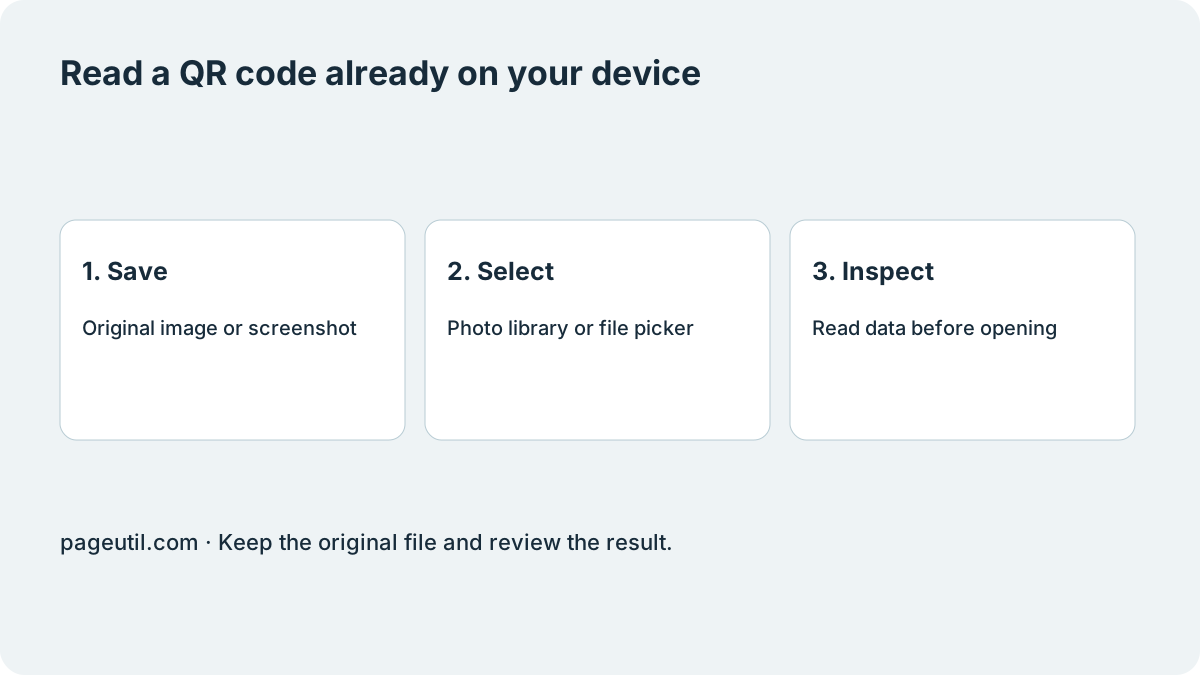
Save the received image to Photos or Files. If an app only displays the code, take a screenshot with the whole square and its surrounding blank border visible. Open QR Code Scanner in Safari and use the image file picker below the camera controls.
Choose Photo Library for a saved photo, or Choose File for an image in Files; the exact picker labels depend on iOS. Select the image and wait for the decoded result. Camera permission is unnecessary for an existing image. This browser workflow also avoids depending on whether your Photos version offers a QR action.
If the image format cannot be read, take a screenshot of the opened photo and select that screenshot. Do not repeatedly photograph a small code from another screen: start with the original image when you have it.
Read a QR image in Samsung Gallery
On supported Galaxy devices, save the image or screenshot, open it in Gallery, and press and hold the QR code. Review the action that appears before following it. Samsung notes that screens and settings vary by device and region.
If Gallery does not detect it, open QR Code Scanner in your browser and choose the saved image with its file picker. The saved-image route does not require the camera to recognise a code shown on the same phone.
Use a screenshot on a computer
Select the image file, drag it onto the scanner drop zone, or use Paste Screenshot when your browser grants clipboard access. If clipboard permissions block pasting, save the screenshot and use the file picker instead.
If the picture contains several codes, crop a copy around the intended one while keeping its blank border. Enlarge the image to inspect it, but remember that enlarging a blurry screenshot cannot recreate missing detail. For a code that fails after printing, use the separate How to Troubleshoot Printed QR Codes Not Scanning.
Inspect the result before taking action
The scanner decodes the image in your browser and displays the payload. Check the full hostname rather than trusting a logo in the picture. A decoded link is not a certificate of safety; opening it contacts the destination website.
A Wi-Fi code may expose a network password, and a contact code may expose personal details. Treat screenshots and copied results accordingly. Finish when the intended code has decoded and you understand its destination or data type.
References
Use the linked specifications and product documentation to check behavior in your own environment.
Continue troubleshooting
Related tools
Frequently asked questions
Can I scan a QR code from a photo in my gallery?
Yes. Select the saved image in the browser scanner instead of starting the camera. On supported Samsung devices, Gallery can also offer an action when you press and hold the code.
Do I need another phone to scan my iPhone screenshot?
No. Open the scanner on the same iPhone and choose the screenshot from the photo or file picker.
Why can I see the QR code but not decode it?
The image may be too small, blurred, cropped into the blank border, or contain several codes. Try the original image or a clear screenshot containing one complete code.