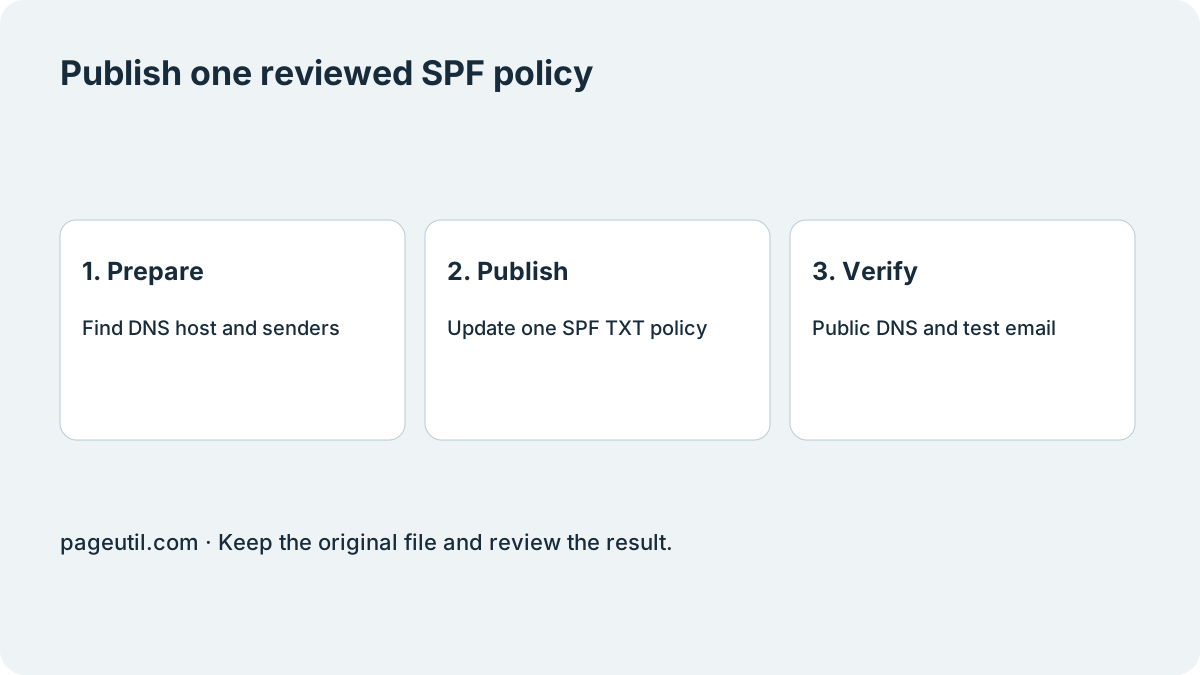
Find the DNS host and existing SPF record
Check the domain’s nameservers with DNS Lookup. Continue in GoDaddy only when it hosts the authoritative zone; otherwise use that DNS provider. Query TXT for the hostname your mail provider tells you to configure and save the existing answer before editing.
List every service that sends mail for that hostname. Obtain its current SPF instructions from the service itself, then prepare the combined policy in SPF Record Generator. Do not copy a GoDaddy email example unless you actually use that mail product. For syntax and merging, use Two SPF records on one domain: find the conflict.
Publish the TXT policy in GoDaddy
Sign in to Domain Portfolio, choose the domain and open DNS. If its SPF TXT record already exists, edit that record. Otherwise choose Add New Record and TXT. Enter @ for the root hostname, or the required subdomain prefix, paste the prepared policy as Value and retain an appropriate TTL. Save and complete any identity check.
Keep unrelated TXT records, including ownership verification and DKIM records. Multiple TXT records are normal; multiple separate v=spf1 policies for the same hostname are the problem.
| Field | What to enter |
|---|---|
| Type | TXT |
| Name | @ for the root, or the prefix specified by the sending service |
| Value | Your reviewed v=spf1 policy, not a generic policy from another mail product |
| TTL | Your chosen DNS cache lifetime; keep a record of the previous value |
Verify the public answer and a real message
Query TXT for the exact hostname with DNS Lookup. Count complete v=spf1 records, not the number of quoted chunks shown for one TXT record. If answers still show the previous policy, allow existing caches to expire and check again.
Send a test from each legitimate service. Email Health Checker can inspect the domain configuration, while Email Header Analyzer helps inspect authentication results on received mail. A saved DNS form alone does not prove that every sender is authorised.
If an expected sender fails, compare its documented policy requirements with the saved previous value. Correct that mismatch rather than adding a second SPF policy or removing the final all mechanism indiscriminately.
References
Use the linked specifications and product documentation to check behavior in your own environment.
Continue troubleshooting
Related tools
Frequently asked questions
Why can I not edit SPF at my domain registrar?
The registrar and DNS host can differ. Edit the TXT record at the provider serving the authoritative nameservers, even if GoDaddy sold you the domain.
Should I add another SPF record for a new email service?
For the same hostname, update the single existing SPF policy to authorise all legitimate senders. Do not publish a second separate v=spf1 policy.
Does SPF go in the MX record field?
No. Publish the policy as TXT at the sending hostname specified by your email service. MX records describe inbound mail routing.