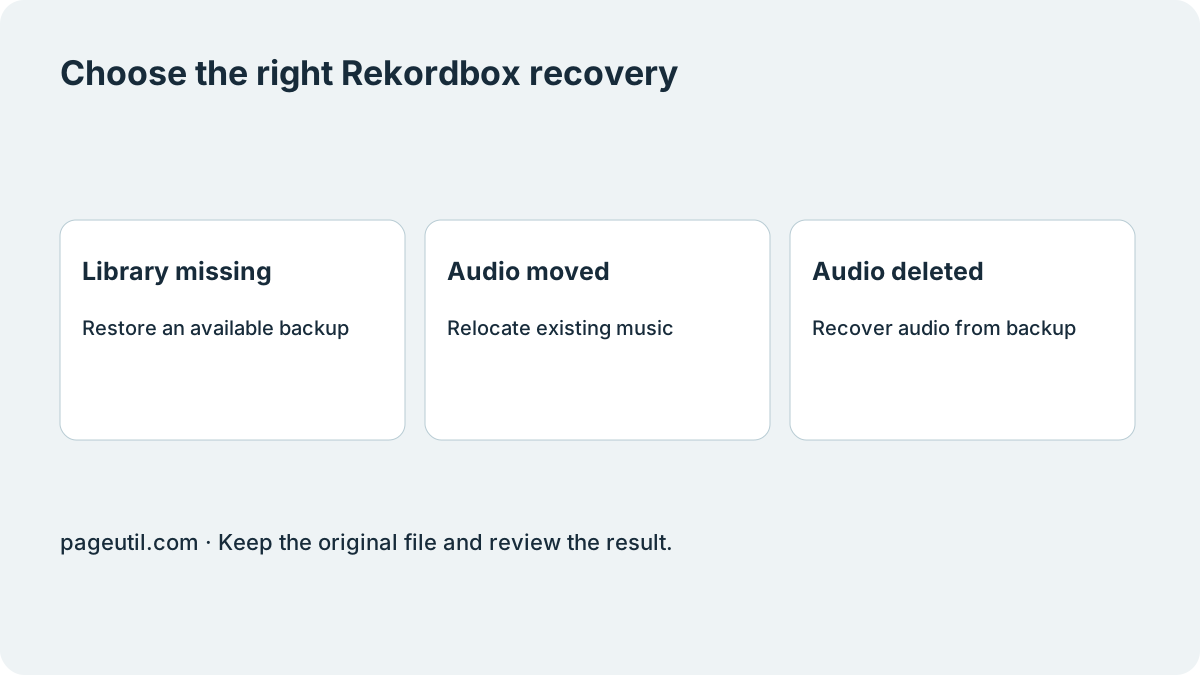
Identify which part is missing
Before changing anything, preserve a copy of the current library and original exports. Check whether playlists and cues still appear, and whether the audio files exist in Finder or File Explorer. A full library restore can replace a state you wanted to keep.
| What you have | Appropriate next step |
|---|---|
| Library missing, with a library backup | Use Rekordbox Restore Library. |
| Collection intact, music moved to another drive | Relocate existing audio; use XML repair only for an XML migration. |
| Library or XML exists, but audio was deleted | Recover audio from a separate backup first. A path rewrite cannot recreate it. |
| Only an exported device-library backup | Check that feature’s restore procedure; it is not the same as a desktop library backup. |
Restore a library backup in Rekordbox 7
In Rekordbox 7, choose File → Library → Restore Library, select the backup and follow the prompts. The manual says a backup’s accompanying rekordbox_bak music folder must remain at its original relative location when restoring included audio. Do not assume a small database backup also contains your tracks.
After restoration, load representative tracks and check playlists, cues and analysis. Keep the untouched backup until this check succeeds. For a deliberate move to another computer, create the backup through File → Library → Backup Library first and check whether music was included.
Where are the library files and music stored?
There are three locations to distinguish: the active database location, the backup file you chose when backing up, and the folders holding the music files. A database file is not a folder of playable audio, and an XML export is not a full database backup.
For the active database, inspect the Database area in Rekordbox Preferences; database placement can change when moved to another drive. For music, inspect a track’s file location and verify it on disk. For a saved backup, use the folder you selected when creating that backup. Avoid guessing one universal operating-system path and overwriting database files there.
Relink moved audio without restoring the whole library
If the files exist but their paths changed, use Rekordbox’s missing-file relocation workflow. When migrating through an XML export with a systematic prefix change, use How to Fix Missing Tracks and Broken XML Paths in Rekordbox. It contains the replacement and import steps; they are not a substitute for Restore Library.
Stop if the target audio does not exist or the proposed destination points to a different track. The browser fixer edits XML references only. It does not read a live Rekordbox database, recover deleted audio or restore a library backup.
References
Use the linked specifications and product documentation to check behavior in your own environment.
Continue troubleshooting
Related tools
Frequently asked questions
Can an XML export replace a Rekordbox library backup?
No. XML is an interchange export, not a complete copy of the live database and audio. Preserve a library backup and separate copies of your music.
Will restoring the database recover deleted music?
Only audio actually included in an available backup can be restored from it. A database or path list cannot recreate deleted audio bytes.
Can I repair missing tracks without restoring the library?
Yes, when the collection is intact and the audio still exists at a new location. Relocate the files, or repair systematic XML path changes for an XML migration.