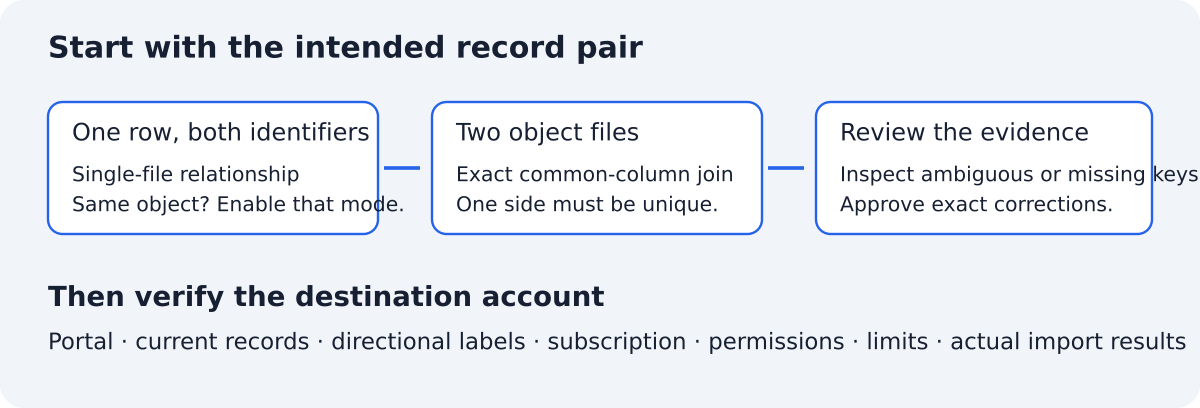
Choose the import shape before cleaning rows
Start with the smallest statement of intent: contact 101 should link to company 201. Decide whether each record already exists. If both exist, use an update-only import and identifiers from that portal. If records may be created, review creation properties and business identity before choosing create-and-update. A successful record import and a successful association are separate outcomes.
Use the decision table below. PageUtil exports candidates for six explicit profiles; it does not assume that activities, line items, products or arbitrary custom objects obey the same contract. Those workflows need their own object schema and association rules.
| Your evidence | Choose | What to verify |
|---|---|---|
| One row already identifies both objects | Single file | Two object mappings; each pair is intentional |
| One object per file; common values connect them | Two files | Common column in both; one side unique |
| Contact → contact or child company → parent company | Single file, same-object associations | At least one existing side; associated-identifier mapping |
| Only similar company names | Investigate before import | Obtain stable IDs or an explicitly configured unique property |
| Unknown custom schema, products or activities | Use the appropriate HubSpot-specific workflow | Do not reuse the contact/company template blindly |
HubSpot import terminology · Multiple-object import steps
Worked example: two contacts, one company, two relationships
Imagine a migration review for Northstar Labs. The destination export identifies company 201, and the intended contacts are 101 and 102. The numbers here are synthetic. They demonstrate the file structure, not IDs that exist in your account. Replace them with values exported from your own destination before a real import.
The first example contains exactly two relationship statements. In PageUtil, load demonstration 01, confirm Contact → Company, Single association file, Record ID on each side, and Existing records. Run Match and validate. You should see two source records, one target record and two proposed relationships. With no reference export, these are supplied relationships—not confirmed destination matches.
Preview candidate files. Its two object-qualified Record ID headers are disambiguating labels for mapping; HubSpot does not require magical header spelling. In the HubSpot importer, select both objects, one file, update-only for both, and map each ID column to that object’s Record ID. There are no name or email updates in this candidate. Review the result after a small sample import.
Contact Record ID,Company Record ID
101,201
102,201
01-contacts-companies.csv · Load demonstration 01
Record ID - Contacts,Record ID - Companies
101,201
102,201
Official mapping and import instructions
Two-file walkthrough: the common column belongs to one object
Demonstration 02 keeps contacts and companies separate. Company Record ID is repeated in the contacts file, but occurs once in the companies file. Select the common column in each mapping and Target object as the side with unique values. Name the common output property Record ID - Companies. The local join finds two relationships to company 201.
Download both candidates. In HubSpot choose contacts and companies, Multiple files, one candidate per object and the intended import mode for each. Select the shared header as the common column, then Company as the object for which it is the unique key. Map the contact identifier to contact Record ID and the company identifier to company Record ID. Do not import the joining company ID as an ordinary contact property.
The checker retains two output files; it does not silently turn this workflow into a flattened single-file import. Reverse the unique side only when your input actually contains one source row per common value. A two-file one-to-many join cannot safely infer an unrestricted many-to-many join from duplicate keys on both sides. Use explicit pairs in one file for that case.
To reproduce a Duplicate association ID investigation locally, duplicate the company 201 row in the company file. The checker reports duplicate-common-key and ambiguous-reference. Deleting the second contact row would be the wrong repair: the ambiguity is on the company side.
Contact Record ID,Company Record ID
101,201
102,201
Company Record ID,Name
201,Northstar Labs
02-contacts.csv · 02-companies.csv · Load demonstration 02 · HubSpot’s common-column selection
Identity is a configuration decision, not a display-name guess
Record ID is the clearest choice when you already have a fresh export from the destination. Keep every digit and any leading zero as text; never run IDs through a numeric conversion. Spreadsheet precision damage cannot be reversed by padding the result. Obtain an untouched export instead.
Record ID takes precedence over other identifying properties in an import. That does not mean contradictory values are harmless. Demonstration 09 gives two contact IDs the same Email. PageUtil blocks the conflict rather than allowing precedence to disguise it. A changed email beside an existing ID can be an update instruction, so compare it with a current reference export.
For cross-object imports, HubSpot can match an existing secondary contact email. Including that email together with Record ID can replace the primary email. Same-object associations restrict email/domain matching to primary values. A custom unique property is an account configuration, not a checkbox that makes an arbitrary CSV column unique. Verify the actual property before confirming it in PageUtil.
Company domains and custom keys are not interchangeable identity models. When a custom unique company property is selected, identical company domains can represent distinct records. Keep distinct subsidiaries separate if that is the intended model. Contact Email still has uniqueness requirements. PageUtil preserves exact custom keys and record IDs, compares email/domain casing for local reference lookup, and never strips a domain scheme or edits whitespace without approval.
| Object | Supported choices in this checker | Avoid |
|---|---|---|
| Contact | Record ID, Email, configured custom unique property | Personal-name similarity as identity |
| Company | Record ID, Company domain name, configured custom unique property | Assuming company names or shared domains identify one company |
| Deal / ticket | Record ID or configured custom unique property | Treating Deal name / Ticket name as globally unique |
| Same-object profiles | Record ID or primary email/domain, as appropriate | Secondary email/domain and two-new-record pairs |
Load demonstration 09 · Identifier requirements and secondary-email behavior
Repeated records are not necessarily duplicate associations
Demonstration 05 has one source contact and two target companies. Both rows are needed. A “remove duplicate contacts” operation keyed only on contact ID would erase a valid relationship. In demonstration 06, both endpoints repeat, so PageUtil reports a duplicate-edge warning instead. It does not delete the row automatically.
Compare the pair first, then the properties. Repeated identity with different mapped values is a conflict requiring review; repeated identity with consistent values and different targets can be valid. Additional labels on a repeated pair may be intentional, but consolidation into one semicolon-separated label cell makes the relationship easier to review.
HubSpot also documents a limited create-and-update behavior that groups identical object data across rows without an explicit identifier. That behavior is not a general promise that deal names are unique; changing another property can change the outcome. This checker deliberately requires stable identifiers for predictable association preparation.
Contact Record ID,Company Record ID
101,201
101,202
Contact Record ID,Company Record ID
101,201
101,201
Load demonstration 05 · Load demonstration 06 · Repeated rows and create-and-update behavior
Missing evidence and ambiguous identity require different repairs
Load demonstration 03. The contacts file refers to company 999, which is absent from the supplied company file. In a two-file join, this is a confirmed broken join in those files. It is not proof that company 999 is missing from HubSpot. Check whether the export is filtered, stale or from another portal before deciding to create a company.
Demonstration 04 is a different problem: Northstar Lbas resembles two reference company names. The stable target ID is unresolved. Open the relationship to see suggestions with their comparison explanation. Selecting Review suggestion merely fills a proposed cell edit; you must confirm the intended identity and approve the exact correction. A fuzzy suggestion never becomes a confirmed match on its own.
Export a reference list containing the selected identifier and display name for each relevant object. Do not infer completeness from its filename. Two rows with the same reference key are ambiguous evidence even when their names agree; investigate whether the export repeated one record or the chosen property identifies multiple records.
A useful handoff records four facts: which input file and record raised the finding, what the original key was, which evidence supports the proposed target, and who approved the replacement. PageUtil retains the first three in its session and correction report; it does not authenticate reviewers or offer a team audit trail.
Load demonstration 03 · Load demonstration 04
Labels describe direction; Primary has an extra constraint
An association can exist without a custom label. To label it, use Association label and values that already exist for the correct object pair. Separate several labels with semicolons. In demonstration 08, Primary;Billing contact proposes a primary company relationship plus a user-configured label; Mystery is absent from the supplied list. That list is local evidence, not a live account lookup.
A paired label names the two perspectives on one relationship. The label describing the associated target belongs in the import; HubSpot applies its paired inverse. Do not put both halves of a label pair in the same cell merely to describe both directions. A display name is not an API association type ID, and PageUtil never manufactures those IDs.
Custom labels and label imports have subscription requirements: verify Professional or Enterprise availability in the destination. Primary is a standard company association label; proposing two different Primary companies for one contact is contradictory. The checker flags that conflict. Existing primary associations still require CRM inspection; the file cannot show what is already present.
For two-file preparation place the label in the file that carries the associated identifier/common key, and map it as Association label for the intended object relationship. Importing labels adds them; it is not an instruction to remove existing labels. Use an authorised HubSpot workflow to change or remove existing relationships when required.
08-labels.csv · Load demonstration 08 · Label pairs, direction and limits · Label-import requirements
Same-object and parent-company relationships need their own profile
Select Contact → Contact to prepare a same-object file. Map the first contact identifier and the associated contact identifier separately, enable same-object associations in HubSpot, and confirm that at least one record already exists. For multiple associated contacts, use semicolon-separated associated identifiers. Primary email restrictions matter here even when a secondary email would match in another workflow.
Select Child company → Parent company for company hierarchy preparation. The first ID identifies the child; the associated company ID identifies the parent; Parent company describes that target. A parent can have several children, but a child cannot have several parents. The checker also rejects self-links and cycles in the supplied hierarchy. It cannot see an existing parent or a cycle completed by another record outside your files.
PageUtil does not offer arbitrary custom objects, activities or line items under these profiles. Supplying a custom unique property for a supported object is different from importing a custom object. Extending the profile requires an independently verified schema and tests, not a generic object-name input.
Official parent/child company import instructions · Same-object import requirements
Read the actual HubSpot error before choosing a repair
Download the error output from the actual import and keep its mapping and import mode. Some association failures leave successfully imported records behind. A retry of the entire original file can therefore repeat work. The names below follow the current HubSpot error reference; “Update-only record not found” is often a description of the symptom, while the documented heading is “Update only import”.
The action column gives a practical investigation, not a promise that a local check reproduces HubSpot’s internal error. In particular, repeated identifiers used for legitimate different edges should not be deleted simply because an error article discusses duplicate IDs.
| Documented error | Cause to investigate | Next action |
|---|---|---|
| Duplicate association ID | Non-unique association key | Inspect the selected unique-side common column; reproduce by duplicating example 02’s company row. |
| Invalid association identifier | Unsuitable key, line break or excessive length | Recover the intended identifier; inspect hidden newlines and the 100-character constraint. |
| Association record not found | Required association key absent or malformed | Inspect both mapped identifiers; compare with a fresh destination export. |
| Failed to create association | File relationship structure cannot be used | Check the two object mappings or the two-file common column. |
| Failed to find record for associations | Duplicate identifying values or missing update-only target | Separate repeated edges from conflicting identities; inspect current CRM records. |
| Duplicate record ID | Record ID reused in an incompatible record import | Check full mapped rows and mode; preserve valid different relationship pairs. |
| Update only import | Identifier does not match an existing record | Check portal and original ID; do not switch to creation just to bypass the failure. |
| Association limits exceeded | Configured relationship limit exceeded | Count existing plus proposed relationships; ask the administrator to review the limit. |
| Association label not found | Label absent in the destination | Check spelling, object direction, paired label and subscription. |
Authoritative HubSpot import-error definitions and recovery steps
Before and after: repair one identifier without changing the original
Load demonstration 10. Its company identifier is “ 201 ” with surrounding spaces. Run the checker: identifier-whitespace blocks candidate export. Open the relationship, inspect the original value, propose “201”, acknowledge the exact edit and approve it. Alternatively preview the deterministic whitespace edits and explicitly approve that scope.
Run analysis after the change. The original preview still contains spaces; the approved-changes table records both strings. The candidate contains 201. Undo restores the original finding. Reset clears the in-memory investigation. Only the optional mapping preset survives, and Delete local preset removes it.
Download the original findings, approved corrections and corrected candidate below to compare your output. The checked-in verified-demo-results.json is generated by the same deterministic engine as the demos. These are reproducible local outputs, not a claim that a HubSpot portal accepted the samples.
Load demonstration 10 · 10-original.csv · 10-original-findings.csv · 10-approved-corrections.csv · 10-corrected-candidate.csv
| Example | Relationships | Confirmed errors | Other rule codes |
|---|---|---|---|
| 01 | 2 | 0 | Destination checks only |
| 02 | 2 | 0 | Destination checks only |
| 03 | 2 | 1 | missing-reference |
| 04 | 1 | 0 | missing-reference |
| 05 | 2 | 0 | Destination checks only |
| 06 | 2 | 0 | duplicate-edge |
| 07 | 2 | 0 | Destination checks only |
| 08 | 2 | 0 | unknown-label, labels-subscription |
| 09 | 2 | 1 | conflicting-identifiers, email-overwrite |
| 10 | 1 | 1 | identifier-whitespace |
Download machine-readable demonstrated outcomes
Ten downloadable scenarios with expected findings
Each example has a real CSV download, a reproducible tool configuration and an automated scenario test. The complete archive includes a README, checklist and the before/after diagnostic files. These examples use synthetic identifiers and reserved example.test addresses; they contain no customer data.
01. Contacts and companies
Two contacts link to one company. Repeated company identity is valid. Expected local rules: no confirmed file errors; destination remains unverified.
01-contacts-companies.csv · Load demonstration 01
02. Two-file common-column join
Contacts repeat Company Record ID; the company file contains that common value once. Select company as the unique object. Expected local rules: no confirmed file errors; destination remains unverified.
02-contacts.csv · 02-companies.csv · Load demonstration 02
03. Missing company reference
Company 999 is absent from the supplied company file. This says nothing conclusive about the destination CRM. Expected local rules: missing-reference; destination remains unverified.
03-contacts.csv · 02-companies.csv · Load demonstration 03
04. Ambiguous company names
Northstar Labs and Northstar Lab are different identities. A misspelling has two suggestions; neither is automatically selected. Expected local rules: missing-reference; destination remains unverified.
04-intentions.csv · 04-companies.csv · Load demonstration 04
05. Multiple associations
Contact 101 associates with companies 201 and 202. Both rows must remain. Expected local rules: no confirmed file errors; destination remains unverified.
05-multiple.csv · Load demonstration 05
06. Duplicate relationship edge
The exact 101 → 201 relationship occurs twice. This is distinct from a record with two different relationships. Expected local rules: duplicate-edge; destination remains unverified.
06-duplicate.csv · Load demonstration 06
07. Existing contacts and deals
Use deal Record IDs rather than assuming Deal name is unique. Expected local rules: no confirmed file errors; destination remains unverified.
07-contact-deal.csv · Load demonstration 07
08. Association labels
Primary;Billing contact is compared with a supplied directional label list. Mystery is unknown. Destination subscription still needs checking. Expected local rules: unknown-label; destination remains unverified.
08-labels.csv · Load demonstration 08
09. Conflicting identifiers
Two contact Record IDs claim one email. Record ID precedence does not make the email conflict safe. Expected local rules: conflicting-identifiers; destination remains unverified.
09-conflict.csv · Load demonstration 09
10. Review a correction
Company ID contains surrounding spaces. Approve the exact trim, rerun analysis and compare with the committed corrected candidate. Expected local rules: identifier-whitespace; destination remains unverified.
10-original.csv · Load demonstration 10
Download the complete example ZIP · Example instructions
A safe import review you can use without PageUtil
Review the candidate as a proposed change to real CRM data. Keep the original files and the destination export used as evidence. Agree who owns the decision when a relationship is ambiguous; a numerical similarity score cannot answer that business question.
HubSpot association import checklist
1. Confirm portal and object types.
2. Choose single file or two files. Same-object profiles use one file.
3. Choose update-only versus create-and-update for each object.
4. Select identifiers; preserve IDs as text. Record ID takes precedence.
5. For two files, choose the common column and the object with unique values.
6. Check missing keys, conflicting identifiers and duplicate edges separately.
7. Review every proposed correction against the unchanged source.
8. Check directional labels, Primary, subscription and account limits.
9. Verify current records in HubSpot; an export can be incomplete or stale.
10. Review candidate preview and mapped additional properties.
11. Import a small authorised sample and inspect actual results.
12. Reconcile records AND associations before expanding the import.
What the free checker can and cannot establish
Local analysis can establish malformed structure, explicit file joins, repeated pairs, conflicting supplied properties and contradictions such as multiple proposed primary companies. It can compare the uploaded references, but cannot establish that an export is complete, current or from the right portal. “Missing from this export” and “missing from HubSpot” are different claims.
All source values stay in the browser. Parsing and analysis use a Web Worker. A small relationship diagram is replaced by paginated tables for larger investigations. Files are not saved automatically. Local presets save configuration only; exported diagnostics themselves may contain sensitive identifiers and should be handled like the source files.
The browser safety envelope is separate from HubSpot’s subscription-specific import limits. PageUtil accepts 25 MiB per file, four files and 50 MiB per session, with row/cell and expanded-XLSX limits to control memory. It rejects XLSX formulas, multiple worksheets and numeric values that suggest precision loss. CSV is the preferable format for an untouched long identifier. Legacy XLS requires conversion outside this tool.
Candidate CSVs preserve mapped field strings, including formula-looking text, because changing a key for spreadsheet display would change the intended import. Diagnostic CSVs prefix formula-like cells for safer spreadsheet viewing. Open candidates with a text editor or a spreadsheet import dialog configured for text columns; double-clicking a CSV can cause Excel to reinterpret values.
No account connection, imports API calls, record merging, automatic association deletion, cloud history or paid backend is implemented. All local checks, mapping presets and downloads are free. HubSpot’s own import result remains the authority for actual acceptance.
Current HubSpot file-size, row and subscription limits
Related tools
Frequently asked questions
What evidence should I send to support without exposing my CRM?
Use synthetic replacement values that preserve the failing relationship pattern, include the selected import mode and mappings, and quote the exact error. Do not send unredacted contact exports merely to demonstrate a duplicate joining key.
Can a perfect CSV still associate the wrong records?
Yes. A key copied from the wrong portal or a stale reference export can be structurally valid. Verify portal identity and inspect a small sample of actual destination records before the full import.
Does removing a relationship row remove the old HubSpot association?
No. A candidate association file is not a complete replacement graph. Omitting a row does not instruct HubSpot to delete an existing relationship.